# 🔔What's New

This page highlights recent product updates, enhancements, and feature improvements released to improve the user experience for Publishers and Viewers during live sessions.

### **July 2026 Release**

**DND** \
Do Not Disturb Mode Do Not Disturb (DND) mode allows a user to mute their visibility and awareness of other viewers during a stream. When enabled, you will not see or hear other viewers.

#### **🎥 White boarding toolkit updates**

The drawing toolbar provides participants with annotation tools to draw and interact on the live stream canvas and also Text tool to write on the canvas. This page covers the Colour Picker, Undo, and Display Name while Drawing features.

***

#### Co-Host feature

The Publisher can elevate any **currently online viewer** to Co-Host status during a live conference session. This enables distributed moderation and gives trusted participants administrative control without ending or transferring the session.<br>


# White boarding addons

The Pencil Toolkit provides participants with annotation tools to draw and interact on the live stream canvas. This page covers the Color Picker, Undo, Text Tool, and Display Name.

### Drawing Toolbar Overview

The toolbar appears during an active session and contains the following tools:

| Icon            | Tool                                                                                                                                     |
| --------------- | ---------------------------------------------------------------------------------------------------------------------------------------- |
| ✏️ Pencil       | Freehand drawing                                                                                                                         |
| ⭕ Circle        | Draw circle shapes                                                                                                                       |
| 🎨 Color Picker | Choose stroke color <mark style="color:pink;">(</mark><mark style="color:pink;">**Newly added**</mark><mark style="color:pink;">)</mark> |
| 🧹 Eraser       | Erase drawings                                                                                                                           |
| ↩ Undo          | Undo last action <mark style="color:pink;">**(Newly added**</mark>)                                                                      |
| 🗑️ Delete      | Clear all drawings                                                                                                                       |

***

*Drawing toolbar with Color Picker expanded*

***

### 1. Color Picker

The Color Picker allows participants to change the color of their drawing stroke before or during annotation.

#### Steps

1. Open the **drawing toolbar** from the session controls.
2. Tap the **🎨 Color Picker** icon (palette icon) in the toolbar.
3. A color swatch panel will expand below the toolbar, showing the available colors:

   * Blue, Green, Yellow, Orange, Red, Pink, Purple, Grey, White

   *Color palette expanded showing 9 color options*
4. Tap any color to select it. Your next drawing stroke will use the selected color.

> **Tip:** The currently active tool is highlighted with a darker background. Make sure the **Pencil** or **Circle** tool is selected before drawing.

***

### 2. Undo

The Undo feature lets participants reverse their last drawing action on the canvas.

#### Steps

1. While in drawing mode, tap the **↩ Undo** icon in the drawing toolbar.
2. The most recent stroke or shape drawn will be removed from the canvas.
3. Tap **Undo** repeatedly to step back through multiple actions one at a time.

> **Note:** Undo only applies to your own drawings. It does not affect strokes made by other participants.

***

### 3. Text Tool

The Text Tool allows users to write text onto the streaming window.

**Steps**

1. While in Text Tool mode, click within the stream area to place a textbox (click and drag will also create a textbox).
2. Type out your text.
3. You may also change the color of the text by selecting a color within the Color Picker.
4. You can click outside of the textbox, or press **Shift+Return**, to close the textbox.

### 4. Display Name While Drawing

When a participant draws on the canvas, their **display name appears as a label** attached to their active stroke or shape. This helps all viewers identify who is annotating in real time.

*Participant's display name shown as a tooltip near their drawing*

#### Behaviour

* The name label appears **automatically** — no action is needed from the participant.
* The label is displayed in a **color-matched tooltip** that corresponds to the participant's selected stroke color.
* The name remains visible **while the participant is actively drawing** and fades once they stop.
* All participants in the session can see each other's name labels simultaneously.

> **Note:** The display name shown is pulled from the participant's account name as it appears in the session.

***

### Constraints & Behaviour

* Drawing tools are available to all participants who have been **added to the stream**.
* Clearing drawings using the **🗑️ Delete** icon removes **all annotations** on the canvas and cannot be undone.


# DND — Do Not Disturb

Enabling Do Not Disturb mode will prevent you from seeing/hearing all other viewers in the stream, and vice versa. Follow these simple steps to streamline your experience and eliminate unwanted alerts

#### Overview

DND mode is useful for participants who want to focus without the distraction of other viewers' audio or visual presence, while still remaining in the stream.

#### How to Enable Do Not Disturb

1. To enable Do Not Disturb, start by clicking on the crescent moon icon that sits to the left of the video conference section.
2.

```
<div align="center"><figure><img src="/files/NMvuCzdvlQXLUg975TDg" alt="" width="563"><figcaption></figcaption></figure></div>
```

3. A confirmation window will appear. This confirmation prompt can be disabled for future use if preferred.
4. Click **Enable DND** to activate Do Not Disturb mode on your account.

#### How to Disable Do Not Disturb

To **Disable DND**, and restore visibility / audio with other viewers, click on the crescent moon once more.


# CoHost

Publisher can assign host privilege to viewers who are online.

### Overview

Using the instructions below, a publisher may now share hosting duties with a secondary user. This will allow the cohost to create and delete guest links, and manage who is allowed or not allowed into the stream room.

### How to Assign a CoHost

1. Click the **Publisher Panel** icon.

<div align="left"><figure><img src="https://1921184522-files.gitbook.io/~/files/v0/b/gitbook-x-prod.appspot.com/o/spaces%2F2ewwqbsGrG8ESKUFOkFP%2Fuploads%2Fc41yQfl8jv6ApB3fQrlj%2FCoHost1.jpg?alt=media&amp;token=859652f2-8d53-43cd-8b25-5dfcb3d19968" alt="" width="563"><figcaption></figcaption></figure></div>

2. Click the **CoHost** icon next to the viewer.

{% hint style="danger" %}
**Note:** A user cannot be assigned as a Cohost unless they are in the stream room with you at the time of assignment.
{% endhint %}

<div align="left"><figure><img src="https://1921184522-files.gitbook.io/~/files/v0/b/gitbook-x-prod.appspot.com/o/spaces%2F2ewwqbsGrG8ESKUFOkFP%2Fuploads%2FlQHtn7wQC9M0YbtNatDc%2FCoHost2.jpg?alt=media&amp;token=4354ff0a-5bfb-4d5f-919e-15a60b01369c" alt="" width="563"><figcaption></figcaption></figure></div>

3. Confirm the CoHost assignment.

<div align="left"><figure><img src="https://1921184522-files.gitbook.io/~/files/v0/b/gitbook-x-prod.appspot.com/o/spaces%2F2ewwqbsGrG8ESKUFOkFP%2Fuploads%2F4PCt8pnM5v7ldPiJq0bP%2FCoHost3.jpg?alt=media&amp;token=dbfc1187-ae4d-44a4-9109-5e3ca46e9100" alt="" width="563"><figcaption></figcaption></figure></div>

4. To revoke access, click the **Revoke CoHost** icon next to the user.

<div align="left"><figure><img src="https://1921184522-files.gitbook.io/~/files/v0/b/gitbook-x-prod.appspot.com/o/spaces%2F2ewwqbsGrG8ESKUFOkFP%2Fuploads%2FpOOt4r2VQyjXgLKfScEr%2FCoHost4.jpg?alt=media&amp;token=b5a7faee-4664-40a5-b309-b22d9eec7b77" alt="" width="563"><figcaption></figcaption></figure></div>

5. Confirm the revocation. The user can no longer share hosting duties.

<div align="left"><figure><img src="https://1921184522-files.gitbook.io/~/files/v0/b/gitbook-x-prod.appspot.com/o/spaces%2F2ewwqbsGrG8ESKUFOkFP%2Fuploads%2F0WXYquPbKh2Er4UKcfmv%2FCoHost5.jpg?alt=media&amp;token=7bc38018-a0e9-4fda-9378-a75f1987e02c" alt="" width="563"><figcaption></figcaption></figure></div>

### Co-Host Capabilities

| Capability                 | Description                                                                  |
| -------------------------- | ---------------------------------------------------------------------------- |
| End Conference for All     | Terminate the entire session, disconnecting all participants simultaneously  |
| Guest Link Creation        | Generate shareable guest links for external participants to join the session |
| Guest Link Management      | Share and delete existing guest links                                        |
| Add Viewers to Stream      | Admit participants or approve join requests to the live stream               |
| Remove Viewers from Stream | Eject participants from the stream in real time                              |

### Constraints & Behavior

* Only the **Publisher** can assign or revoke host privileges — Co-Hosts cannot elevate other viewers.
* Host privileges are available to co-host unless Publisher revokes it.
* The Publisher retains all Co-Host capabilities at all times.
* The **Assign CoHost** option is only visible for viewers listed under the **Added** tab who are currently online.


# CoHost

Assign and manage Co-Host access for online viewers during a live session.

## Co-Host

Publishers can share hosting duties with an online viewer during a live session.

Co-Hosts can create, share, and delete guest links. They can also admit or remove viewers. A Co-Host can end the conference for all participants.

Only the Publisher can assign or revoke Co-Host access. Access remains active until the Publisher revokes it.

### Manage Co-Host access

* [Assign Co-Host access](/public-wiki/whats-new/cohost-1/assign-co-host-access) to grant an online viewer hosting controls.
* [Revoke Co-Host access](/public-wiki/whats-new/cohost-1/revoke-co-host-access) to remove hosting controls.
* [Co-Host capabilities and limits](/public-wiki/whats-new/cohost-1/co-host-capabilities-and-limits) for permissions and restrictions.


# Assign Co-Host access

Grant Co-Host access to an online viewer during a live session.

## Assign Co-Host access

The Publisher can elevate an online viewer to Co-Host during a live session.

{% hint style="info" %}
Only viewers who are online can receive Co-Host access.
{% endhint %}

1. Open the **Publisher Panel** from the top navigation bar.
2. Open the **Added** tab.
3. Find the viewer and select **Assign CoHost**.
4. In the confirmation dialog, select **Yes**.
5. Select **Apply Changes**.

The button changes to **Revoke Host** when access is active.

<figure><img src="https://1921184522-files.gitbook.io/~/files/v0/b/gitbook-x-prod.appspot.com/o/spaces%2F2ewwqbsGrG8ESKUFOkFP%2Fuploads%2FazRD5OoJsXYgoyVcPV6V%2FScreenshot%202026-06-24%20at%2011.31.38%E2%80%AFAM.png?alt=media&amp;token=b2b2c484-c612-45f3-8ec3-5abd5db5592c" alt="Publisher Panel with Co-Host assignment controls"><figcaption></figcaption></figure>


# Revoke Co-Host access

Remove Co-Host access from a viewer during a live session.

## Revoke Co-Host access

The Publisher can remove Co-Host access at any time.

1. Open the **Publisher Panel**.
2. Open the **Added** tab.
3. Find the Co-Host and select **Revoke Host**.
4. In the confirmation dialog, select **Yes**.
5. Select **Apply Changes**.

<figure><img src="https://1921184522-files.gitbook.io/~/files/v0/b/gitbook-x-prod.appspot.com/o/spaces%2F2ewwqbsGrG8ESKUFOkFP%2Fuploads%2FjLdvSGvxHEZnwNNeOnHP%2FScreenshot%202026-06-24%20at%2011.31.59%E2%80%AFAM.png?alt=media&amp;token=aec0ed1e-3091-4a0e-8e69-099c01a81c8f" alt="Publisher Panel with Revoke Host control"><figcaption></figcaption></figure>


# Co-Host capabilities and limits

Learn what Co-Hosts can manage and who can assign access.

## Co-Host capabilities and limits

Co-Hosts can manage these session actions:

* **End Conference for All** — Ends the session for every participant.
* **Guest links** — Create, share, and delete guest links.
* **Viewer management** — Add or remove viewers from the stream.

### Limits

* Only the **Publisher** can assign or revoke Co-Host access.
* Co-Hosts cannot grant access to other viewers.
* The Publisher retains every Co-Host capability.
* Co-Host access remains active until the Publisher revokes it.


# DND Do Not Disturb

Enabling Do Not Disturb mode will prevent you from seeing or hearing all other viewers in the stream, and vice versa. Follow these simple steps to streamline your experience and eliminate unwanted ale

### Overview

DND mode is useful for participants who want to focus without the distraction of other viewers' audio or visual presence, while still remaining in the stream.

### How to Enable Do Not Disturb

1. Locate the crescent moon icon positioned to the left of the video conference section.
2.

```
<figure><img src="/files/pepg4WDBvl0tcPP2Aunt" alt=""><figcaption></figcaption></figure>
```

3. Click the crescent moon icon.
4. A confirmation window will appear. This confirmation prompt can be disabled for future use if preferred.
5. Click **Enable DND** to activate Do Not Disturb mode on your account.
6.

```
<figure><img src="/files/M6tkcbq8Yb0FeELizXTa" alt=""><figcaption></figcaption></figure>
```

### How to Disable Do Not Disturb

<figure><img src="https://1921184522-files.gitbook.io/~/files/v0/b/gitbook-x-prod.appspot.com/o/spaces%2F2ewwqbsGrG8ESKUFOkFP%2Fuploads%2Fo6d3j0L5VYu8orkKoqFW%2Fascreenshot%20(3).jpeg?alt=media&amp;token=35abc81c-e2e6-4d99-ad9c-b3baaf1448b6" alt=""><figcaption></figcaption></figure>

1. Click the crescent moon icon again.
2. This will immediately turn DND mode off, restoring visibility and audio with other viewers.

### Notes

* The confirmation prompt shown in Step 3 is optional and can be turned off if the user prefers not to see it on future toggles.
* DND state is controlled entirely by the crescent moon icon — the same control is used to both enable and disable the mode.

### Reference

* Source walkthrough: [Do Not Disturb Mode — Scribe](https://scribehow.com/o/OHToz57fREK_j-3sCr_6iQ/viewer/Do_Not_Disturb_Mode__5QBjR-atRPisuuJdrNo8nw)
* 4 steps · \~47 seconds


# Overview of Roles

{% embed url="<https://vimeo.com/937967250>" %}

List of topics include:

* [Show Admin](/public-wiki/overview-of-roles/show-admin)
* [Show Publisher](/public-wiki/overview-of-roles/show-publisher)
* [Show Viewer](/public-wiki/overview-of-roles/show-viewer)
* [Creating an Account](/public-wiki/overview-of-roles/creating-an-account)
  * [Resetting Your Password](/public-wiki/overview-of-roles/creating-an-account/resetting-your-password)
  * [Account Settings](/public-wiki/overview-of-roles/creating-an-account/account-settings)
* [Guest Access](/public-wiki/overview-of-roles/guest-access)


# Show Admin

The Show Admin is the user on the account that is responsible for all other users on the show. Every person that is to gain access to the show, either as a viewer or publisher needs to be added to the show by the Show Admin.

<figure><img src="https://1921184522-files.gitbook.io/~/files/v0/b/gitbook-x-prod.appspot.com/o/spaces%2F2ewwqbsGrG8ESKUFOkFP%2Fuploads%2F6hbKc5AUFRPt2XLP9bEv%2FShowAdmin_Home.png?alt=media&amp;token=88b98094-8391-488f-9132-ea29d4c2ebc2" alt=""><figcaption><p>Show Admin home</p></figcaption></figure>

### Show Admin capabilities include:

* Inviting users to the show
* Viewing a list of all streams created in the show
* Managing existing users in the show
* Managing publishing licenses for the show


# Show Publisher

The Show Publisher is the user on the show who is responsible for creating and managing streams. Every user that is to gain access to a stream as a viewer needs to be added to a stream by the Show Publisher. There can be multiple Show Publishers per show. Each Show Publisher requires a paid license assigned to them by the Show Admin.

<figure><img src="https://1921184522-files.gitbook.io/~/files/v0/b/gitbook-x-prod.appspot.com/o/spaces%2F2ewwqbsGrG8ESKUFOkFP%2Fuploads%2FE1tMnYboeL6dYV1K59yO%2FShowPublisher_Home.png?alt=media&amp;token=f80af024-d905-4655-bdec-9606e8473d56" alt=""><figcaption><p>Show Publisher home</p></figcaption></figure>

### Show Publisher capabilities include:

* Creating a stream
* Adding or removing users from streams that are owned by the Show Publisher
* Ability to access Stream Name and Token for publishing
* Rename Streams within the Show Viewer
* Remove all viewers from a Show Viewer room


# Show Viewer

The show viewer is where all of the streams will be viewed. It includes controls to switch between streams, participating in streams via video, voice chat or text chat as well as interact with the published stream via drawn annotations.

<figure><img src="https://1921184522-files.gitbook.io/~/files/v0/b/gitbook-x-prod.appspot.com/o/spaces%2F2ewwqbsGrG8ESKUFOkFP%2Fuploads%2FufeIV6GCoHnlNjMdUFW7%2FShowViewer_Home.png?alt=media&amp;token=3fb946c2-e89c-4fe3-a3e5-e110319ffcc9" alt=""><figcaption><p>Show Viewer home</p></figcaption></figure>

### Show Viewer capabilities include:

* Selecting a stream to view and fast switching between streams
* Viewing the published stream
* Participating in a stream conversation by way of video, audio, or text group chat
* Annotate on top of published streams by drawing or circling


# Creating an Account

When a Show Admin invites you to a show for the first time you will be sent an email prompting you to create a Pac Post Live account. To create this account follow these steps:

{% hint style="info" %}
If this email does not show up in your inbox, please also check your spam folder
{% endhint %}

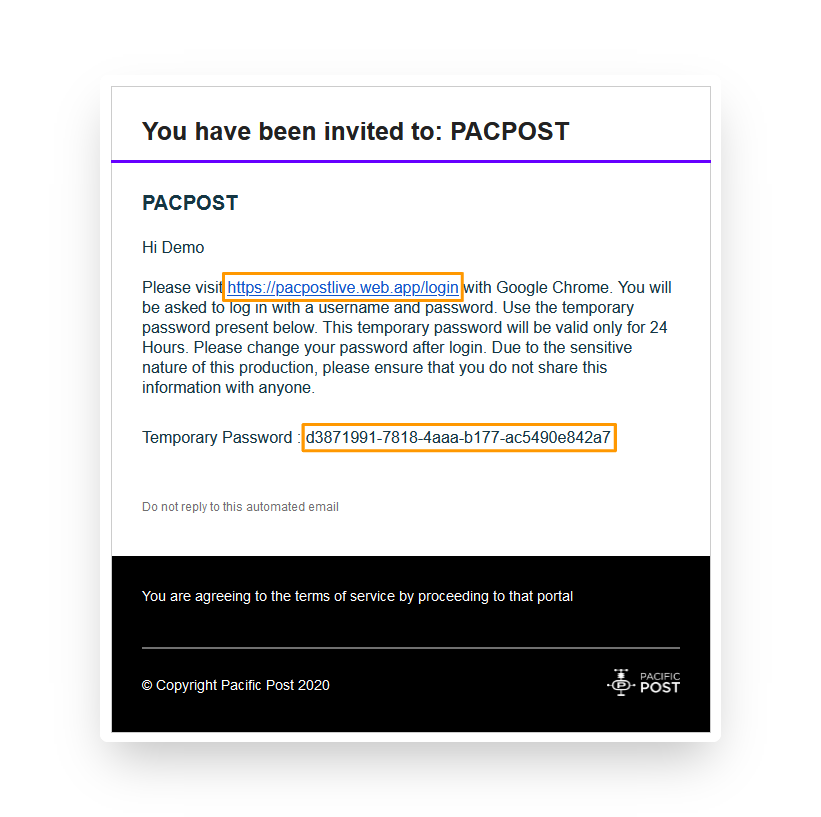
1. Check your email for the invitation email.\ <mark style="background-color:blue;">If this email does not show up in your inbox, please also check your spam folder</mark>
2. In this email please note two items:\
   a. Link to proceed to Pac Post Live Login\
   b. Temporary Password - This is a system generated password used for your first login

   <figure><img src="https://1921184522-files.gitbook.io/~/files/v0/b/gitbook-x-prod.appspot.com/o/spaces%2F2ewwqbsGrG8ESKUFOkFP%2Fuploads%2FFQGiplkDoertEQyzVRVs%2Femail_after_annotated.png?alt=media&amp;token=305e0dbd-41dc-4be5-91d2-3b2f38215878" alt=""><figcaption><p>Email with temporary password</p></figcaption></figure>
3. Copy the Temporary Password to your clipboard for later use.
4. Click the Link in the email to proceed to <https://pacpostlive.web.app/login>.

   <figure><img src="https://1921184522-files.gitbook.io/~/files/v0/b/gitbook-x-prod.appspot.com/o/spaces%2F2ewwqbsGrG8ESKUFOkFP%2Fuploads%2F9GBf8UlTtY8go1kxSMHb%2Flogin.png?alt=media&amp;token=a03564ac-d4b4-4f3d-b313-f9f4477b8d05" alt=""><figcaption><p>PacPost Live login screen</p></figcaption></figure>
5. Type in the email address that your invite was sent to in the E-mail field.
6. Paste the Temporary Password into the Password field.
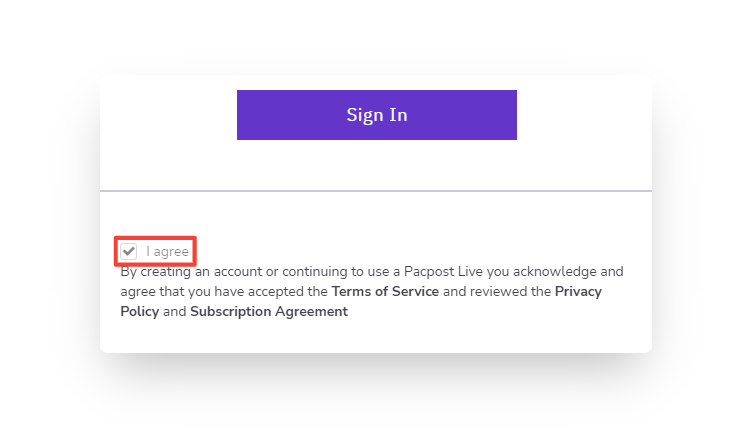
7. Below the Sign In button you will find our **Terms of Service**, **Privacy Policy**, and **Subscription Agreement**, after reviewing these check **I agree**.

   <figure><img src="https://1921184522-files.gitbook.io/~/files/v0/b/gitbook-x-prod.appspot.com/o/spaces%2F2ewwqbsGrG8ESKUFOkFP%2Fuploads%2FGEgauXYF2mEcYnq2lK5r%2Flogin_agree_after_annotated.png?alt=media&amp;token=dfff92b0-3437-4f00-83ac-9061ec467634" alt=""><figcaption><p>Agree to terms</p></figcaption></figure>
8. Click **Sign In**. \
   \ <mark style="background-color:blue;">You should receive an SMS message on your mobile device with a one time code, please make note of this code.</mark>
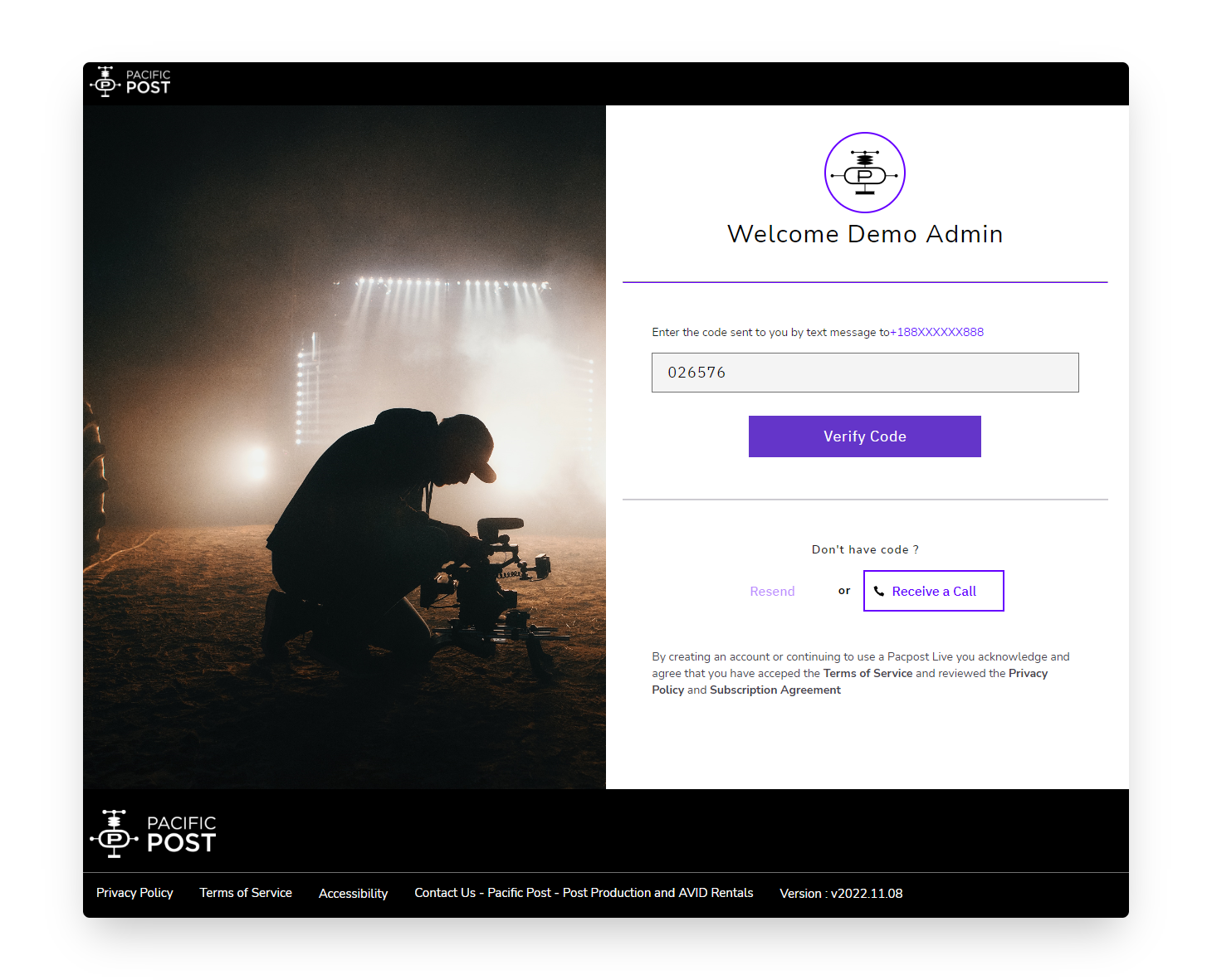
9. On the following page type in the code you received on your mobile device and click **Verify Code**.

   <figure><img src="https://1921184522-files.gitbook.io/~/files/v0/b/gitbook-x-prod.appspot.com/o/spaces%2F2ewwqbsGrG8ESKUFOkFP%2Fuploads%2FiMmFObyvyjX5CzLNh2rk%2F2fa.png?alt=media&amp;token=50bc3485-4148-4684-a6c1-b8f89c2dc455" alt=""><figcaption><p>2 Factor Authentication</p></figcaption></figure>

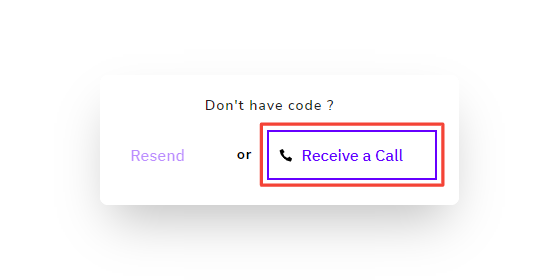
   1. <mark style="background-color:yellow;">If you do not receive a SMS message to your mobile device, you may click the</mark> <mark style="background-color:yellow;"></mark><mark style="background-color:yellow;">**Receive a Call**</mark> <mark style="background-color:yellow;"></mark><mark style="background-color:yellow;">to have an automated system call you and provide a verification code to you over the phone.</mark>

      <figure><img src="https://1921184522-files.gitbook.io/~/files/v0/b/gitbook-x-prod.appspot.com/o/spaces%2F2ewwqbsGrG8ESKUFOkFP%2Fuploads%2FEQpCXFggkGQP8vAIyWhO%2F2fa_call_after_annotated.png?alt=media&amp;token=0f62fb6f-1a36-42a7-a15d-83cffa992e22" alt=""><figcaption><p>2 Factor Authentication receive a call</p></figcaption></figure>
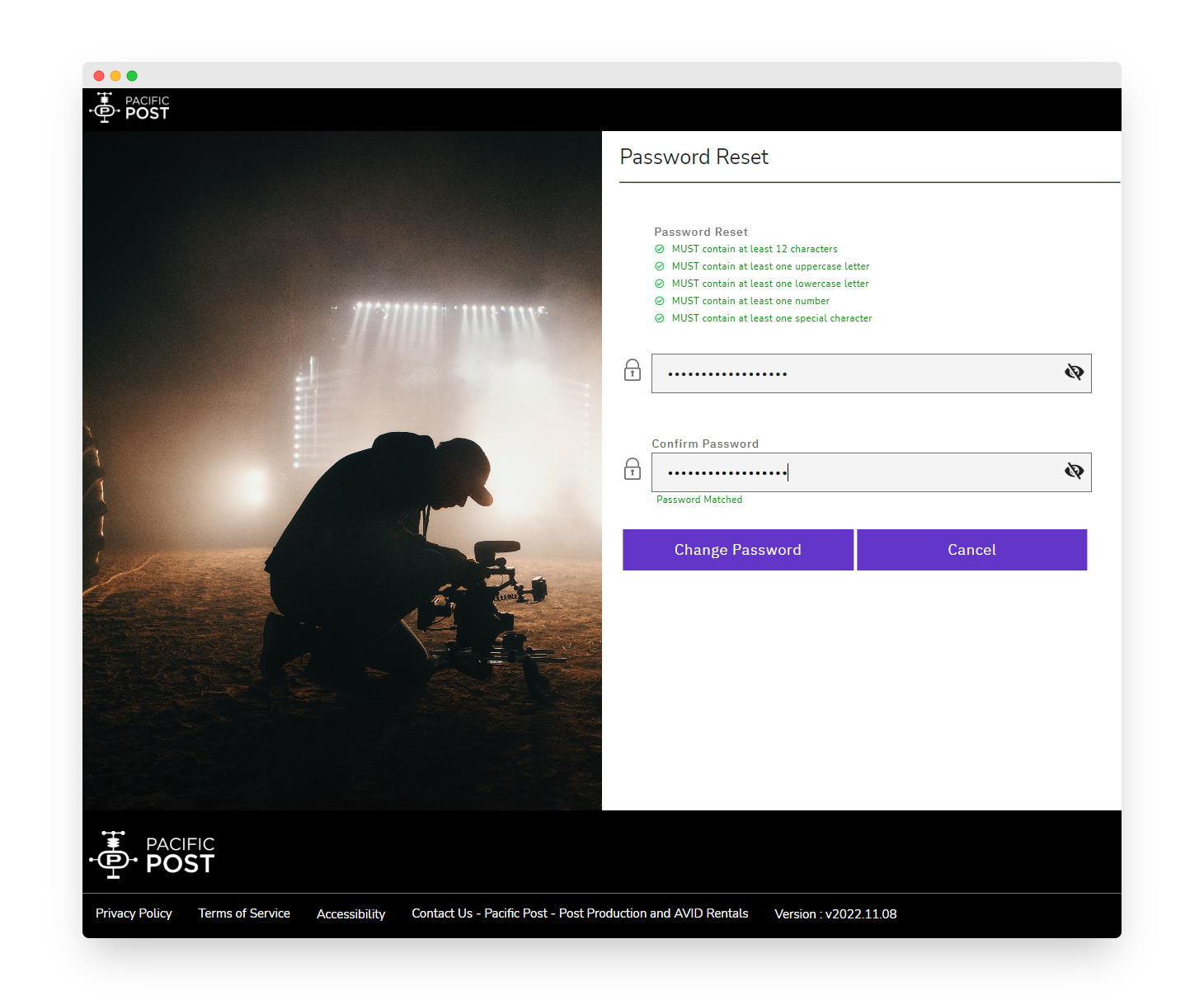
10. On the next page you will set your password. Type in a password ensuring that it meets all of the criteria listed on the page. Then re-type the same password in the **Confirm Password** box below. When you have filled both boxes, click the **Change Password** button.

    <figure><img src="https://1921184522-files.gitbook.io/~/files/v0/b/gitbook-x-prod.appspot.com/o/spaces%2F2ewwqbsGrG8ESKUFOkFP%2Fuploads%2Fn4OPGtPRUqLvzeXYdtIJ%2Fpassword_set.png?alt=media&amp;token=a386c7d3-afac-4702-873e-16b07b15a2fe" alt=""><figcaption><p>Set Password</p></figcaption></figure>
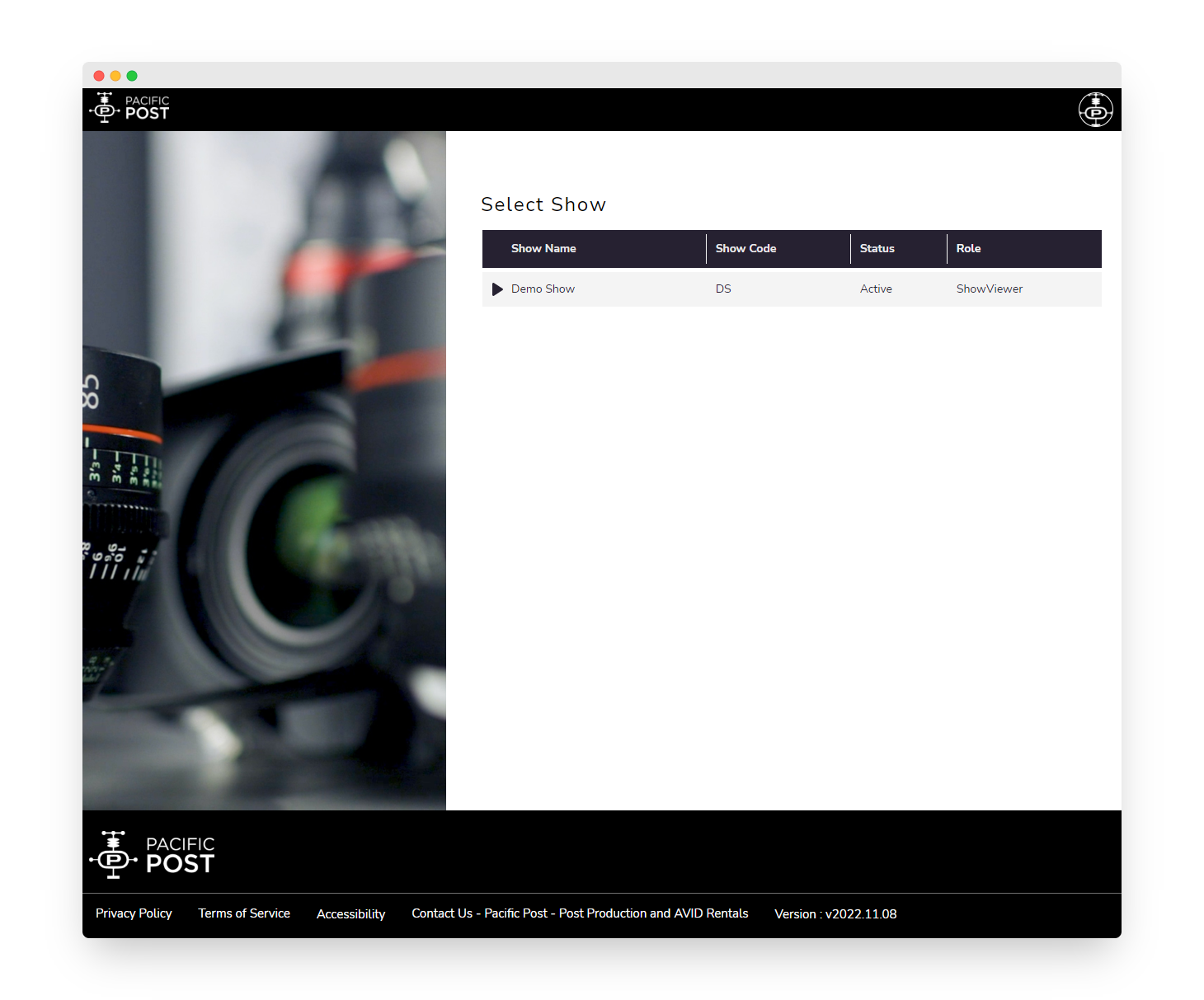
11. You have now successfully signed up for a Pac Post Live account and you should see the Show Selection page below.

    <figure><img src="https://1921184522-files.gitbook.io/~/files/v0/b/gitbook-x-prod.appspot.com/o/spaces%2F2ewwqbsGrG8ESKUFOkFP%2Fuploads%2FZAACW8wIzs9cXmJgIEiP%2FshowViewer_Home_viewer.png?alt=media&amp;token=ddcb8865-5d8a-4f56-bd17-426b77dd6f2b" alt=""><figcaption><p>PacPost Live Show Selection Home</p></figcaption></figure>


# Resetting Your Password

If you want to reset your password either because it has been forgotten to update to a new one this process is simple and can be done in two ways:

### PacPost Live login page

1. From the login page, select the **Forgot Password?** link below and to the right of the password field.
2. This will bring you to the password reset page, type in your email address and click F
3. Type in your two factor code and click **Verify Code**.
4. Check your email for the invitation email.\ <mark style="background-color:blue;">If this email does not show up in your inbox, please also check your spam folder</mark>
5. In this email please note two items:\
   a. Link to proceed to Pac Post Live Login\
   b. Temporary Password - This is a system generated password used to log in to change the password to a new one.
6. Click the Link in the email to proceed to <https://pacpostlive.web.app/login>.
7. Type in the email address that your invite was sent to in the E-mail field.
8. Paste the Temporary Password into the Password field.
9. Below the Sign In button you will find our **Terms of Service**, **Privacy Policy**, and **Subscription Agreement**, after reviewing these check **I agree**.
10. Click **Sign In**. \
    \ <mark style="background-color:blue;">You should receive an SMS message on your mobile device with a one time code, please make note of this code.</mark>
11. On the following page type in the code you received on your mobile device and click **Verify Code**.
12. On the next page you will set your password. Type in a password ensuring that it meets all of the criteria listed on the page. Then re-type the same password in the **Confirm Password** box below. When you have filled both boxes, click the **Change Password** button.
13. You have now successfully reset your password.

### Toolbar in the PacPost Live interface

1. From the PacPost Live homepage, click the PacPost Live icon on the top right of the window.
2. Select **Reset Password.**\ <mark style="background-color:blue;">You should receive an SMS message on your mobile device with a one time code, please make note of this code.</mark>
3. On the following page type in the code you received on your mobile device and click **Verify Code**.
4. On the next page you will set your password. Type in a password ensuring that it meets all of the criteria listed on the page. Then re-type the same password in the **Confirm Password** box below. When you have filled both boxes, click the **Change Password** button.
5. You have now successfully reset your password.


# Account Settings

When logged in to PacPost live you will have the ability to update some of your account settings from your account settings portal. To access this portal use the following procedure:

1. From the PacPost Live homepage, click the PacPost Live icon on the top right of the window.
2. Select **Account Settings.**
3. From the Account Settings page you will have the ability to do the following:
   1. Change your **profile image**.
   2. Change or remove your **Title**.
   3. Update the method that you would like to receive your **Two-Factor-Auth**. The options here include SMS (default), Google Auth or Twilio Authy.
   4. After you have made any changes click the **Save Changes** button to apply the changes to your account.


# Guest Access

When you have been provided a link for guest access to a Pac Post Live stream please use the following steps to get set up and ready to go:

1. Navigate to the link that you were provided.

   <figure><img src="https://1921184522-files.gitbook.io/~/files/v0/b/gitbook-x-prod.appspot.com/o/spaces%2F2ewwqbsGrG8ESKUFOkFP%2Fuploads%2FlqNF9gnXUAPuKmpQtY4X%2FguestLogin.png?alt=media&amp;token=423f9b28-e900-4e86-ab60-6719970718db" alt=""><figcaption><p>Pac Post Live Guest Login Page</p></figcaption></figure>

2. Fill in your **First Name**, **Last Name**, and the **Confidential Passcode** that was provided by the person that shared the link with you.

3. Check the box next to **I am a human** and complete the puzzle if presented with it.

4. Below the **Join Room** button you will find our **Terms of Service**, **Privacy Policy**, and **Subscription Agreement**, after reviewing these check **I agree**.&#x20;

   <figure><img src="https://1921184522-files.gitbook.io/~/files/v0/b/gitbook-x-prod.appspot.com/o/spaces%2F2ewwqbsGrG8ESKUFOkFP%2Fuploads%2FI2Lntg6PRZekavroA1y6%2FguestLogin_filled.png?alt=media&amp;token=6554f296-ff17-4169-8d59-5fa53c2f087a" alt=""><figcaption><p>Pac Post Live Guest Login Page with every option filled in</p></figcaption></figure>

5. After this, the **Join Room** button should be purple, you may now click this to join the room.

6. You might be placed momentarily in a waiting room while the **Show Publisher** verifies access and allows you to enter the room.

   <figure><img src="https://1921184522-files.gitbook.io/~/files/v0/b/gitbook-x-prod.appspot.com/o/spaces%2F2ewwqbsGrG8ESKUFOkFP%2Fuploads%2FUXMxegi1dyBInC0dTtgS%2FguestLogin_waiting.png?alt=media&amp;token=9af86004-7ba6-4582-9383-f99821531009" alt=""><figcaption><p>ShowViewer Waiting Room</p></figcaption></figure>

If this is your first time using Pac Post Live it may be helpful to refernce the following materials:

* [Enable Camera and Microphone for Show Viewer Rooms](/public-wiki/show-viewer-controls/enable-camera-and-microphone)
* Show [Viewer Interface Reference](/public-wiki/show-viewer-interface)


# Show Admin Controls

{% embed url="<https://vimeo.com/937967240>" %}

List of topics include:

* [Inviting Users](/public-wiki/show-admin-controls/inviting-users)
* [Resetting User Passwords](/public-wiki/show-admin-controls/resetting-user-passwords)
* [Deleting Users](/public-wiki/show-admin-controls/deleting-users)
* [Activate user who has been suspended](/public-wiki/show-admin-controls/activate-user-who-has-been-suspended)
* [License Manager](/public-wiki/show-admin-controls/license-manager)
  * [Re-Assigning Licenses](/public-wiki/show-admin-controls/license-manager/re-assigning-licenses)


# Inviting Users

When starting with a new show, the only user that will be part of the show is the Show Admin. The Show Admin is responsible for inviting and managing all publishers and viewers. Inviting a user is simple following these steps:

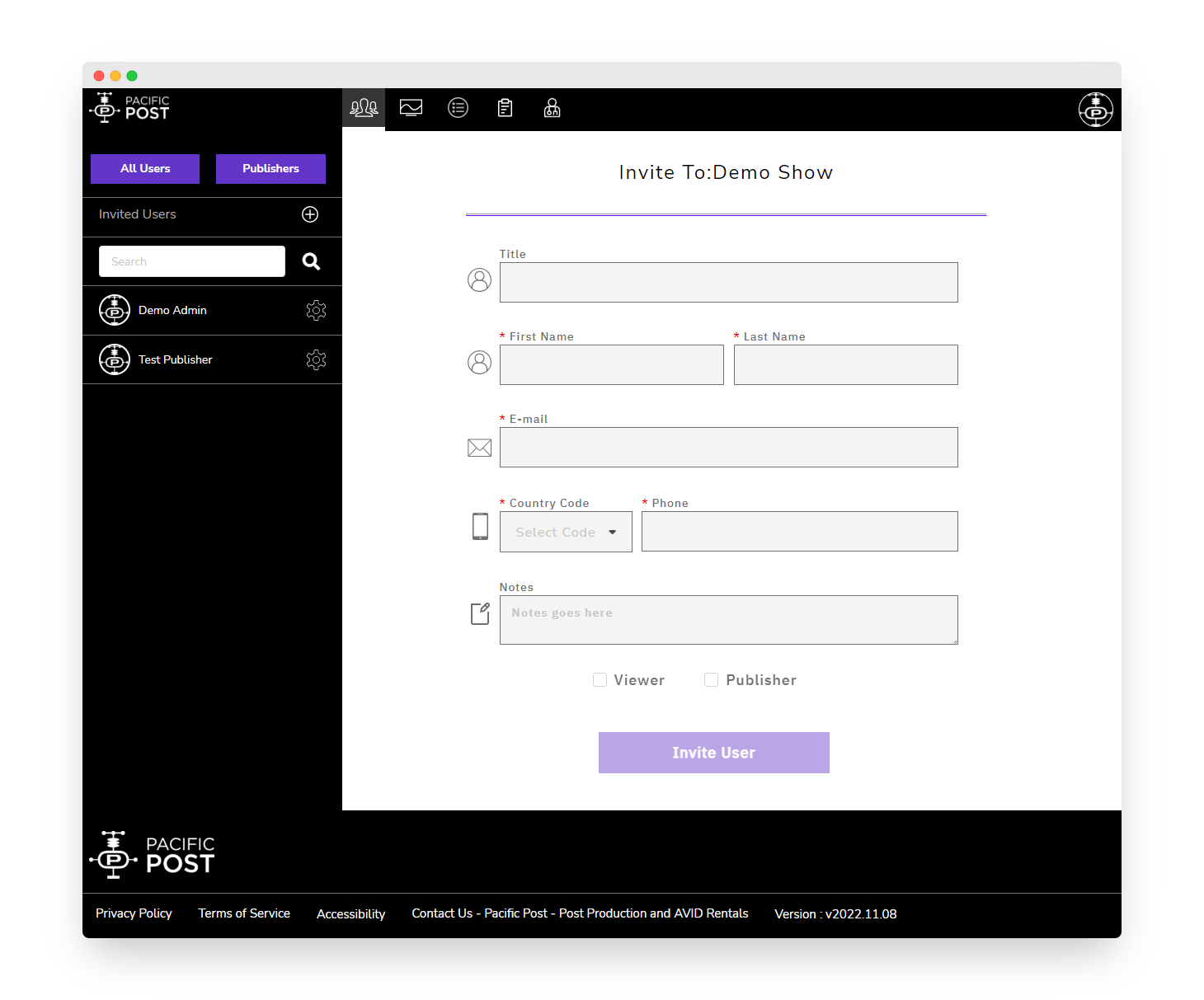
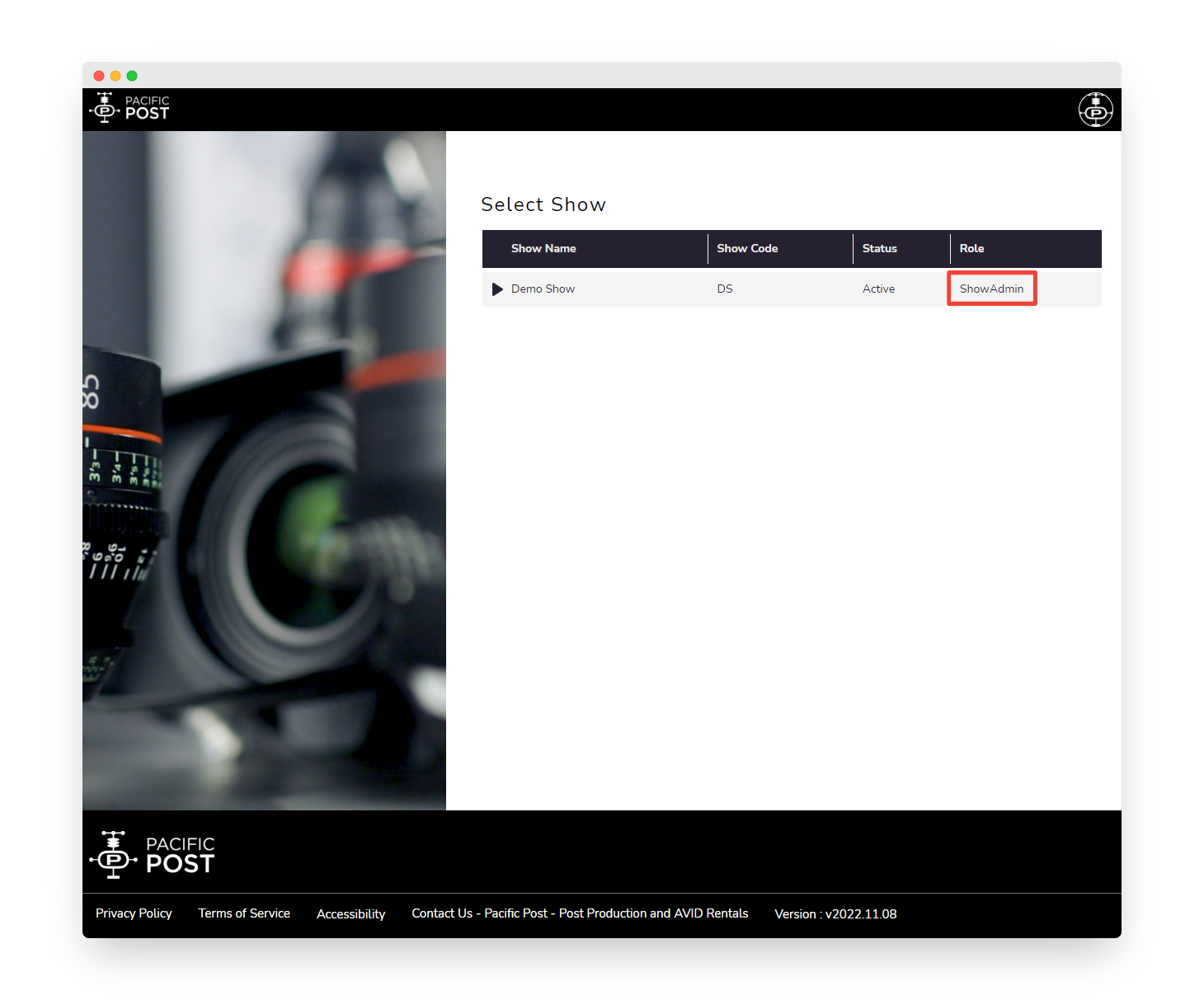
1. From the home page, select the **ShowAdmin** portal for the show you would like to add users to.

   <figure><img src="https://1921184522-files.gitbook.io/~/files/v0/b/gitbook-x-prod.appspot.com/o/spaces%2F2ewwqbsGrG8ESKUFOkFP%2Fuploads%2FXPpKiQgixU45yCQG9V2q%2FshowSelection_admin_annotated.png?alt=media&amp;token=4b6b1d7a-e590-4b6f-bc7c-70db004d9a2b" alt=""><figcaption><p>Show Selection Home highlighting ShowAdmin</p></figcaption></figure>
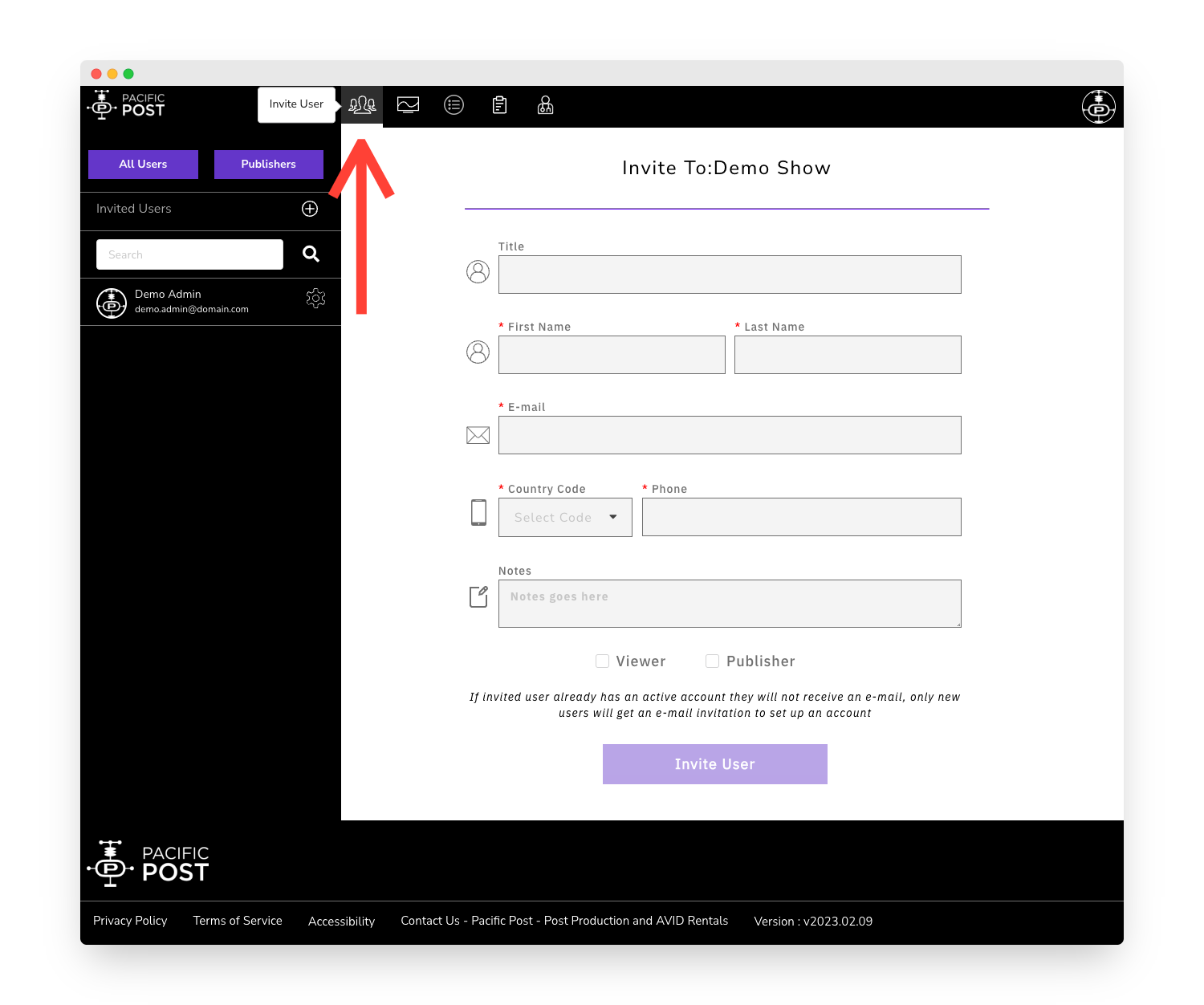
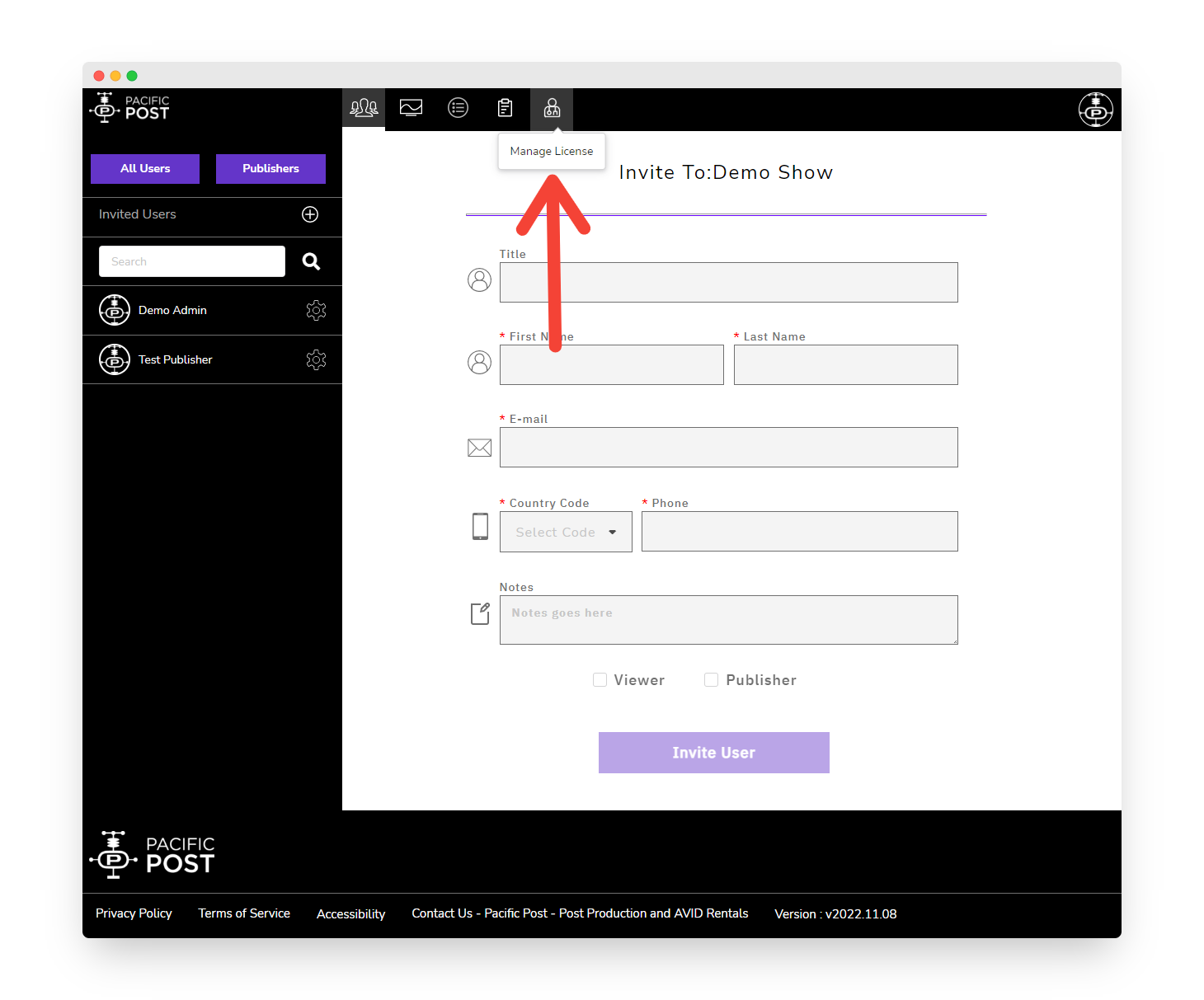
2. You are now in the Show Admin portal. To ensure that you are on the invite page, ensure that the leftmost icon is selected and your screen appears as below:

   <figure><img src="https://1921184522-files.gitbook.io/~/files/v0/b/gitbook-x-prod.appspot.com/o/spaces%2F2ewwqbsGrG8ESKUFOkFP%2Fuploads%2FCrmOSyhraAF0RB3rSjVQ%2Finvite_user_guest_annotated.png?alt=media&amp;token=6fb58be9-d7cf-4694-a106-e955c6e0b827" alt=""><figcaption><p>ShowAdmin highlighting Invite User</p></figcaption></figure>
3. Fill in the details about the user that you would like to add to the project. The details that are required are in red asterisks.\ <mark style="background-color:blue;">You may add notes about a user here for your own reference, the user will not see these notes in their online portal.</mark>

   <figure><img src="https://1921184522-files.gitbook.io/~/files/v0/b/gitbook-x-prod.appspot.com/o/spaces%2F2ewwqbsGrG8ESKUFOkFP%2Fuploads%2FD89NdOD6NQlZ8Ad69MoQ%2Finvite_user_filledOut_guest.png?alt=media&amp;token=fad66855-ceff-4c8e-954c-d2ca66d23783" alt=""><figcaption><p>ShowAdmin Invite User portal</p></figcaption></figure>
4. Select whether you would like to make the new user a **Viewer**, **Publisher** or both.

   <figure><img src="https://1921184522-files.gitbook.io/~/files/v0/b/gitbook-x-prod.appspot.com/o/spaces%2F2ewwqbsGrG8ESKUFOkFP%2Fuploads%2FoyAfsuBxKA4dGIKfjmbI%2Finvite_users_assign_roles_guest_after.png?alt=media&amp;token=64e0e339-6830-4845-a91c-c81f891bd35e" alt=""><figcaption><p>ShowAdmin Invite User Select Roles</p></figcaption></figure>

   1. **Viewers** can only view streams that they are added to. They by default have access to no streams until a publisher adds them to a stream. Adding a user as a viewer here only allows them to be added to a stream by a **Publisher**. **Publishers** do not have the ability to add anyone to a stream without that person having been added as a **Viewer** in the **Show Admin** portal.
   2. **Publishers** are able to create streams and add and remove viewers to their streams. They also have access to the stream code that is required to publish streams from the OBS app. In order to create a stream, each publisher will be required to have a license assigned to them.\ <mark style="background-color:yellow;">If you have unassigned licenses and you add a</mark> <mark style="background-color:yellow;"></mark><mark style="background-color:yellow;">**Publisher**</mark><mark style="background-color:yellow;">, a license will be assigned to that</mark> <mark style="background-color:yellow;"></mark><mark style="background-color:yellow;">**Publisher**</mark> <mark style="background-color:yellow;"></mark><mark style="background-color:yellow;">automatically. If you do not have unassigned licenses, that</mark> <mark style="background-color:yellow;"></mark><mark style="background-color:yellow;">**Publisher**</mark> <mark style="background-color:yellow;"></mark><mark style="background-color:yellow;">will be unable to create a stream.</mark>
   3. **Allow Guest Invite** allows Show Publishers the ability to generate a guest link from inside the ShowViewer Interface. Permitting this option will allow for guests to enter a show that has a generated guest link without having made a Pac Post Live account.
5. Click **Invite User** to complete the invitation process. If the user does not yet have an account, they will be sent an email to create a Pac Post Live account, only new users will get an email invitation. They may reference the [**Creating An Account**](/public-wiki/overview-of-roles/creating-an-account) page for more information.


# Resetting User Passwords

If any user on the show is unable to remember the password to their account, the **Show Admin** may initiate a password reset on their behalf from the Show Admin portal by using the following procedure:

1. From the home page, select the **ShowAdmin** portal for the show you would like to reset a user’s password.

   <figure><img src="https://1921184522-files.gitbook.io/~/files/v0/b/gitbook-x-prod.appspot.com/o/spaces%2F2ewwqbsGrG8ESKUFOkFP%2Fuploads%2FHKXn9xFCGIG6pK6J2i9c%2FshowSelection_admin_annotated.png?alt=media&amp;token=b4b88681-731c-4551-b70e-e4b591c48924" alt=""><figcaption><p>Show Selection Home highlighting ShowAdmin</p></figcaption></figure>
2. You are now in the Show Admin portal. Now click the **List of Users** icon at the top to enter the User List page:

   <figure><img src="https://1921184522-files.gitbook.io/~/files/v0/b/gitbook-x-prod.appspot.com/o/spaces%2F2ewwqbsGrG8ESKUFOkFP%2Fuploads%2FTwW6yG2ffzIHy9ga2yny%2Fadmin_listOfUsers_Selection_annotated.png?alt=media&amp;token=eedf6cfd-42ba-4f21-bb68-d66466162b4d" alt=""><figcaption><p>ShowAdmin highlighting Invite User</p></figcaption></figure>
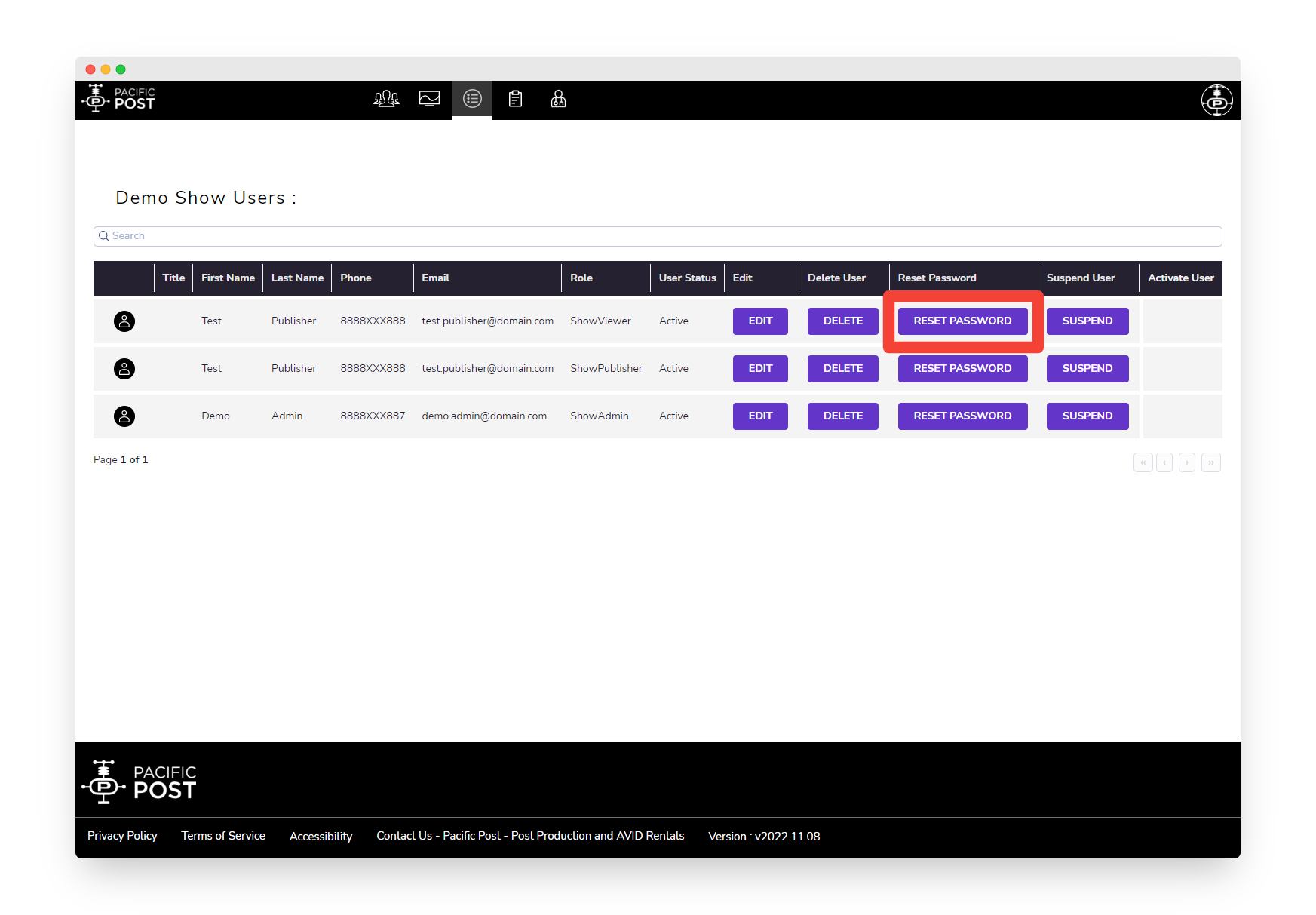
3. You are now on the User List page. On this page will see all details of every user and all of the Roles that are assigned to each user. To reset a password for a user find the user you would like to reset a password for, and click **Reset Password** in that user’s row.

   <figure><img src="https://1921184522-files.gitbook.io/~/files/v0/b/gitbook-x-prod.appspot.com/o/spaces%2F2ewwqbsGrG8ESKUFOkFP%2Fuploads%2FeWzb7Orw3Ia3n13VrmNY%2FresetPassword_annotated.png?alt=media&amp;token=4f7a4ca2-40e7-4265-a640-331bdb401a87" alt=""><figcaption><p>ShowAdmin List User highlighting Reset Password</p></figcaption></figure>
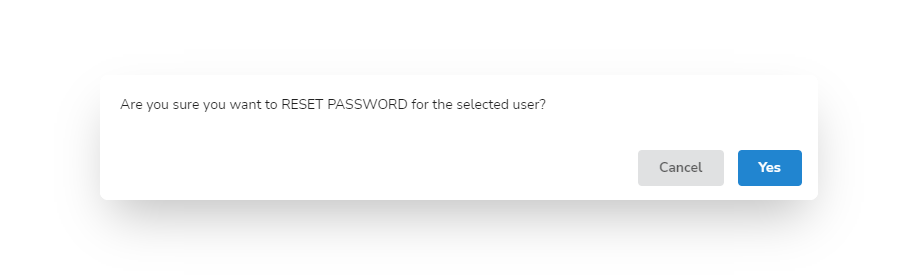
4. A prompt will come up on screen confirming that you want to reset the password for that user, select **Yes**.

   <figure><img src="https://1921184522-files.gitbook.io/~/files/v0/b/gitbook-x-prod.appspot.com/o/spaces%2F2ewwqbsGrG8ESKUFOkFP%2Fuploads%2FoECsemDwJlk6SDMnb0AI%2FresetPassword_Confirmation_after.png?alt=media&amp;token=ee77ff9d-051b-43b5-b6d7-b895112be386" alt=""><figcaption><p>Reset Password confirmation prompt</p></figcaption></figure>
5. You will receive a confirmation on screen that the action was successful. This user will now receive an email with setup instructions, they may reference the [**Creating An Account**](/public-wiki/overview-of-roles/creating-an-account) page for more information.


# Deleting Users

A **Show Admin** as the ability to control which users at any time have access. If any any time a user no longer needs access to the show, they may be removed using the Show Admin portal.

1. From the home page, select the **ShowAdmin** portal for the show you would like to remove users from.

   <figure><img src="https://1921184522-files.gitbook.io/~/files/v0/b/gitbook-x-prod.appspot.com/o/spaces%2F2ewwqbsGrG8ESKUFOkFP%2Fuploads%2FHKXn9xFCGIG6pK6J2i9c%2FshowSelection_admin_annotated.png?alt=media&amp;token=b4b88681-731c-4551-b70e-e4b591c48924" alt=""><figcaption><p>Show Selection Home highlighting ShowAdmin</p></figcaption></figure>
2. You are now in the Show Admin portal. Now click the **List of Users** icon at the top to enter the User List page:

   <figure><img src="https://1921184522-files.gitbook.io/~/files/v0/b/gitbook-x-prod.appspot.com/o/spaces%2F2ewwqbsGrG8ESKUFOkFP%2Fuploads%2FTwW6yG2ffzIHy9ga2yny%2Fadmin_listOfUsers_Selection_annotated.png?alt=media&amp;token=eedf6cfd-42ba-4f21-bb68-d66466162b4d" alt=""><figcaption><p>ShowAdmin highlighting Invite User</p></figcaption></figure>
3. You are now on the User List page. On this page will see all details of every user and all of the Roles that are assigned to each user. To delete user find the user you would like to remove and click **Delete** in that user’s row.

   <figure><img src="https://1921184522-files.gitbook.io/~/files/v0/b/gitbook-x-prod.appspot.com/o/spaces%2F2ewwqbsGrG8ESKUFOkFP%2Fuploads%2FpQEYMvHOpF8S74w67YL9%2FdeleteUser_annotated.png?alt=media&amp;token=5f36087c-b63b-4d35-9e24-1382a3ce0a6b" alt=""><figcaption><p>ShowAdmin List User highlighting Delete</p></figcaption></figure>
4. A prompt will come up on screen confirming that you want to delete the user, select **Yes**.

   <figure><img src="https://1921184522-files.gitbook.io/~/files/v0/b/gitbook-x-prod.appspot.com/o/spaces%2F2ewwqbsGrG8ESKUFOkFP%2Fuploads%2FD9X0KvHKUpzSqT4Ey3Jz%2FdeleteUser_confirmation_after.png?alt=media&amp;token=b91a9e58-e9f5-41c1-9e4a-c8486af16e23" alt=""><figcaption><p>Delete user confirmation prompt</p></figcaption></figure>
5. The user will now be successfully removed from the show and should not appear in the User List.


# Activate User who has been Suspended

If a user has failed to log in multiple times in a short time span their account will be suspended. If this happens the **Show Admin** will need to activate that user again before they are allowed to log in. To activate that user use the following procedure:

1. From the home page, select the **ShowAdmin** portal for the show you would like to remove users from.

   <figure><img src="https://1921184522-files.gitbook.io/~/files/v0/b/gitbook-x-prod.appspot.com/o/spaces%2F2ewwqbsGrG8ESKUFOkFP%2Fuploads%2FHKXn9xFCGIG6pK6J2i9c%2FshowSelection_admin_annotated.png?alt=media&amp;token=b4b88681-731c-4551-b70e-e4b591c48924" alt=""><figcaption><p>Show Selection Home highlighting ShowAdmin</p></figcaption></figure>
2. You are now in the Show Admin portal. Now click the **List of Users** icon at the top to enter the User List page:

   <figure><img src="https://1921184522-files.gitbook.io/~/files/v0/b/gitbook-x-prod.appspot.com/o/spaces%2F2ewwqbsGrG8ESKUFOkFP%2Fuploads%2FTwW6yG2ffzIHy9ga2yny%2Fadmin_listOfUsers_Selection_annotated.png?alt=media&amp;token=eedf6cfd-42ba-4f21-bb68-d66466162b4d" alt=""><figcaption><p>ShowAdmin highlighting Invite User</p></figcaption></figure>
3. You are now on the User List page. On this page will see all details of every user and all of the Roles that are assigned to each user. To activate a user find the user you would like to activate and click **Activate** in that user’s row.

   <figure><img src="https://1921184522-files.gitbook.io/~/files/v0/b/gitbook-x-prod.appspot.com/o/spaces%2F2ewwqbsGrG8ESKUFOkFP%2Fuploads%2FKZCODukrRzcBa6vZ0tQc%2FshowAdmin_activate_annotated.png?alt=media&amp;token=289e9051-5b6f-45c7-b58d-9907c873e57e" alt=""><figcaption><p>ShowAdmin List User highlighting Activate</p></figcaption></figure>
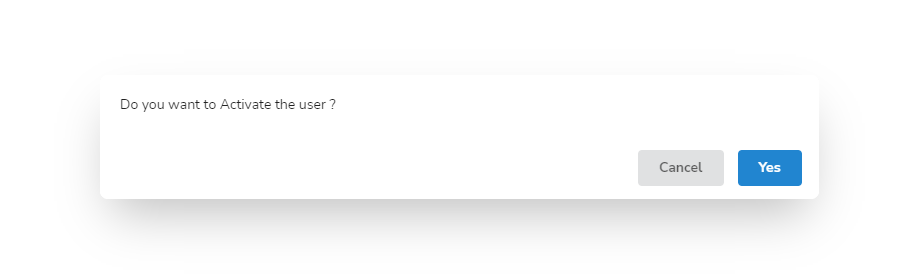
4. A prompt will come up on screen confirming that you want to activate the user, select **Yes**.

   <figure><img src="https://1921184522-files.gitbook.io/~/files/v0/b/gitbook-x-prod.appspot.com/o/spaces%2F2ewwqbsGrG8ESKUFOkFP%2Fuploads%2F5sy2juMJNenRQ91XGzeM%2FshowAdmin_activate_confirmation_after.png?alt=media&amp;token=1300759a-2aa2-4ce6-945c-496f78b9b38a" alt=""><figcaption><p>Activate user confirmation prompt</p></figcaption></figure>
5. The user will now be sent a new temporary password to login and should follow the same instructions as [Creating an Account](/public-wiki/overview-of-roles/creating-an-account).


# License Manager

A **Show Admin** as the ability to assign or unassign **Show Publisher** licenses, request new licenses and cancel current subscription licenses. To view this area of the **Show Admin** portal use the following procedure:

1. From the home page, select the **ShowAdmin** portal for the show you would like to remove users from.

   <figure><img src="https://1921184522-files.gitbook.io/~/files/v0/b/gitbook-x-prod.appspot.com/o/spaces%2F2ewwqbsGrG8ESKUFOkFP%2Fuploads%2FHKXn9xFCGIG6pK6J2i9c%2FshowSelection_admin_annotated.png?alt=media&amp;token=b4b88681-731c-4551-b70e-e4b591c48924" alt=""><figcaption><p>Show Selection Home highlighting ShowAdmin</p></figcaption></figure>
2. You are now in the Show Admin portal. Now click the **Manage License** icon at the top to enter the License Manager page:

   <figure><img src="https://1921184522-files.gitbook.io/~/files/v0/b/gitbook-x-prod.appspot.com/o/spaces%2F2ewwqbsGrG8ESKUFOkFP%2Fuploads%2FFy9Cd6feCNsigMKU50ld%2FshowAdmin_Home_ManageLicense_annotated.png?alt=media&amp;token=25e11671-7e7a-4178-83c5-d1b24e06e3dd" alt=""><figcaption><p>ShowAdmin highlighting Manage License</p></figcaption></figure>
3. You are now on the **License Manager** portal.

   <figure><img src="https://1921184522-files.gitbook.io/~/files/v0/b/gitbook-x-prod.appspot.com/o/spaces%2F2ewwqbsGrG8ESKUFOkFP%2Fuploads%2FW14l0qfxglKltqxjc28T%2FshowAdmin_manageLicense_annotated.png?alt=media&amp;token=f54ea67a-aa1b-46e3-9370-6fe1f0167ae5" alt=""><figcaption><p>ShowAdmin License Manager portal with sections highlighted</p></figcaption></figure>

See below for a breakdown for each section of the **License Manager** portal:

1. Users - This area shows all users that are currently part of the show. By clicking **Publishers**, you will be able to view those users that are **Publishers** only.
2. License Manager - This area displays how many licenses are currently assigned to the account, if the licenses are assigned to a **Publisher** it will also show which **Publisher** has that license.\ <mark style="background-color:blue;">You may click on the</mark> <mark style="background-color:blue;"></mark><mark style="background-color:blue;">**X**</mark> <mark style="background-color:blue;"></mark><mark style="background-color:blue;">next to any license to cancel that license and discontinue recurring billing on that license</mark>
3. History - This shows all account actions that have taken place on behalf of your **Show**. You will see activity such as added and removed licenses that were processed on the **Show**.
4. Request License - Click this button to request more licenses. Upon clicking the button you will see the following:<br>

   <figure><img src="https://1921184522-files.gitbook.io/~/files/v0/b/gitbook-x-prod.appspot.com/o/spaces%2F2ewwqbsGrG8ESKUFOkFP%2Fuploads%2FNCqgNxbdGwmzJuZUaiMP%2FshowAdmin_ManageLicense_request_after.png?alt=media&amp;token=fd5e1c7f-2cad-4fd2-a693-806f64700b67" alt=""><figcaption><p>Request License confirmation dialogue</p></figcaption></figure>

You will add or subtract licenses from your request, and then when you have the correct number of licenses that you would like to add, click **Confirm**.


# Re-Assigning Licenses

A **Show Admin** has the capability to re-assign licenses to any user that has been added to the show. To re-assign a license that is currently in use the following procedure:

{% hint style="warning" %}
Before licenses can be re-assigned, the **Show Publisher** must login first and delete the stream.
{% endhint %}

1. From the home page, select the **ShowAdmin** portal for the show you would like to remove users from.

   <figure><img src="https://1921184522-files.gitbook.io/~/files/v0/b/gitbook-x-prod.appspot.com/o/spaces%2F2ewwqbsGrG8ESKUFOkFP%2Fuploads%2FHKXn9xFCGIG6pK6J2i9c%2FshowSelection_admin_annotated.png?alt=media&amp;token=b4b88681-731c-4551-b70e-e4b591c48924" alt=""><figcaption><p>Show Selection Home highlighting ShowAdmin</p></figcaption></figure>
2. You are now in the Show Admin portal. Now click the **Manage License** icon at the top to enter the License Manager page:

   <figure><img src="https://1921184522-files.gitbook.io/~/files/v0/b/gitbook-x-prod.appspot.com/o/spaces%2F2ewwqbsGrG8ESKUFOkFP%2Fuploads%2FFy9Cd6feCNsigMKU50ld%2FshowAdmin_Home_ManageLicense_annotated.png?alt=media&amp;token=25e11671-7e7a-4178-83c5-d1b24e06e3dd" alt=""><figcaption><p>ShowAdmin highlighting Manage License</p></figcaption></figure>
3. You are now in the **License Manager** portal.

   <figure><img src="https://1921184522-files.gitbook.io/~/files/v0/b/gitbook-x-prod.appspot.com/o/spaces%2F2ewwqbsGrG8ESKUFOkFP%2Fuploads%2F8wYSG0WqMkjdxHwiFJRx%2FshowAdmin_manageLicense.png?alt=media&amp;token=6ac9d1eb-6e52-4dac-8547-aa0499169ee2" alt=""><figcaption><p>ShowAdmin License Manager portal</p></figcaption></figure>
4. For the license you would like to re-assign, use the **click to assign a user** link.

   <figure><img src="https://1921184522-files.gitbook.io/~/files/v0/b/gitbook-x-prod.appspot.com/o/spaces%2F2ewwqbsGrG8ESKUFOkFP%2Fuploads%2Frt93SjZlWHUpbuYxPYkw%2FshowAdmin_manageLicense_reassign1_after_annotated.png?alt=media&amp;token=3165d166-3656-4f56-9fb0-5b9cd1b2a29e" alt=""><figcaption><p>ShowAdmin License Manager highlighting click to assign a user</p></figcaption></figure>
5. A pop up window will appear that has a list of every other user in the show. Click the check box next to the user you would like to re-assign the license to and click **confirm**.

   <figure><img src="https://1921184522-files.gitbook.io/~/files/v0/b/gitbook-x-prod.appspot.com/o/spaces%2F2ewwqbsGrG8ESKUFOkFP%2Fuploads%2Fo72UELu9kv3WOsWzQvkU%2FshowAdmin_manageLicense_reassign2_after_annotated.png?alt=media&amp;token=27c1c201-c903-4e37-a83b-e95422adab90" alt=""><figcaption><p>Re-assign license confirmation dialogue</p></figcaption></figure>
6. You will now notice that the license has been re-assigned to a new user and a new entry was added to the **History** **Panel** to reflect this change.

   <figure><img src="https://1921184522-files.gitbook.io/~/files/v0/b/gitbook-x-prod.appspot.com/o/spaces%2F2ewwqbsGrG8ESKUFOkFP%2Fuploads%2FjIH3WNz7WpV1kbD8ahOf%2FshowAdmin_manageLicense_reassignComplete_annotated.png?alt=media&amp;token=9ef17953-177c-46b9-83d6-a73c8660b110" alt=""><figcaption><p>ShowAdmin License Manager highlighting changed user</p></figcaption></figure>


# Show Publisher Controls

{% embed url="<https://vimeo.com/937967264>" %}

List of topics include:

* [Create Stream](/public-wiki/show-publisher-controls/create-stream)
* [Invite Users](/public-wiki/show-publisher-controls/invite-users-to-stream)
* [Copy and Paste Token into OBS](/public-wiki/show-publisher-controls/copy-and-paste-token-into-obs)
* [Rename Stream](/public-wiki/show-publisher-controls/rename-stream)
* [Network Troubleshooting](/public-wiki/network-requirements)


# Create Stream

The only users who are able to create streams in a show are the **Show Publishers**. Creating a stream will generate a token enable the **Show Publisher** to share their workspace via OBS. To create a stream use the following procedure:

1. From the home page, select the **ShowPublisher** portal for the show where you would like to create a stream.

   <figure><img src="https://1921184522-files.gitbook.io/~/files/v0/b/gitbook-x-prod.appspot.com/o/spaces%2F2ewwqbsGrG8ESKUFOkFP%2Fuploads%2FPxa6l8EzsxeZhCL4gUSO%2FShowSelection_publisher_annotated.png?alt=media&amp;token=9c84d325-f79e-4374-b5a1-60f379054267" alt=""><figcaption><p>Show Selection Home highlighting ShowPublisher</p></figcaption></figure>
2. You are now in the Show Publisher portal. To ensure that you are on the **Create Stream** page, ensure that the leftmost icon on the top bar is selected and your screen appears as below:

   <figure><img src="https://1921184522-files.gitbook.io/~/files/v0/b/gitbook-x-prod.appspot.com/o/spaces%2F2ewwqbsGrG8ESKUFOkFP%2Fuploads%2FDjsTcDUDsQaInabT0poW%2FshowPublisher_createStream_highlight_annotated.png?alt=media&amp;token=6581846d-205c-4569-abb2-3998b288a0a6" alt=""><figcaption><p>ShowPublisher Create Stream portal</p></figcaption></figure>
3. Enter a stream name for this stream. Only numbers and characters can be used here, spaces and special characters are not allowed.\
   \ <mark style="background-color:yellow;">**Note: It is recommended to enter a stream end time on this page, but not required.**</mark><br>

   <figure><img src="https://1921184522-files.gitbook.io/~/files/v0/b/gitbook-x-prod.appspot.com/o/spaces%2F2ewwqbsGrG8ESKUFOkFP%2Fuploads%2FPsxV5N8dGmKdv5GL4k5t%2FshowPublisher_createStream_filled.png?alt=media&amp;token=b08e5b04-ea90-458a-84f7-9db9839064c0" alt=""><figcaption><p>ShowPublisher Create Stream portal</p></figcaption></figure>
4. Click **Create** and your stream should have been created.

{% hint style="danger" %}
Please keep the stream name and token **confidential**, sharing these credentials is **NOT** recommended
{% endhint %}


# Invite Users to Stream

The **Show Publishers** have the ability to control which **Show Viewers** on the show are able to access the stream that the **Show Publisher** has created. To edit which **Show Viewers** may access the stream use the following steps:

1. From the home page, select the **ShowPublisher** portal for the show where you would like to invite users to a stream.

   <figure><img src="https://1921184522-files.gitbook.io/~/files/v0/b/gitbook-x-prod.appspot.com/o/spaces%2F2ewwqbsGrG8ESKUFOkFP%2Fuploads%2FPxa6l8EzsxeZhCL4gUSO%2FShowSelection_publisher_annotated.png?alt=media&amp;token=9c84d325-f79e-4374-b5a1-60f379054267" alt=""><figcaption><p>Show Selection Home highlighting ShowPublisher</p></figcaption></figure>
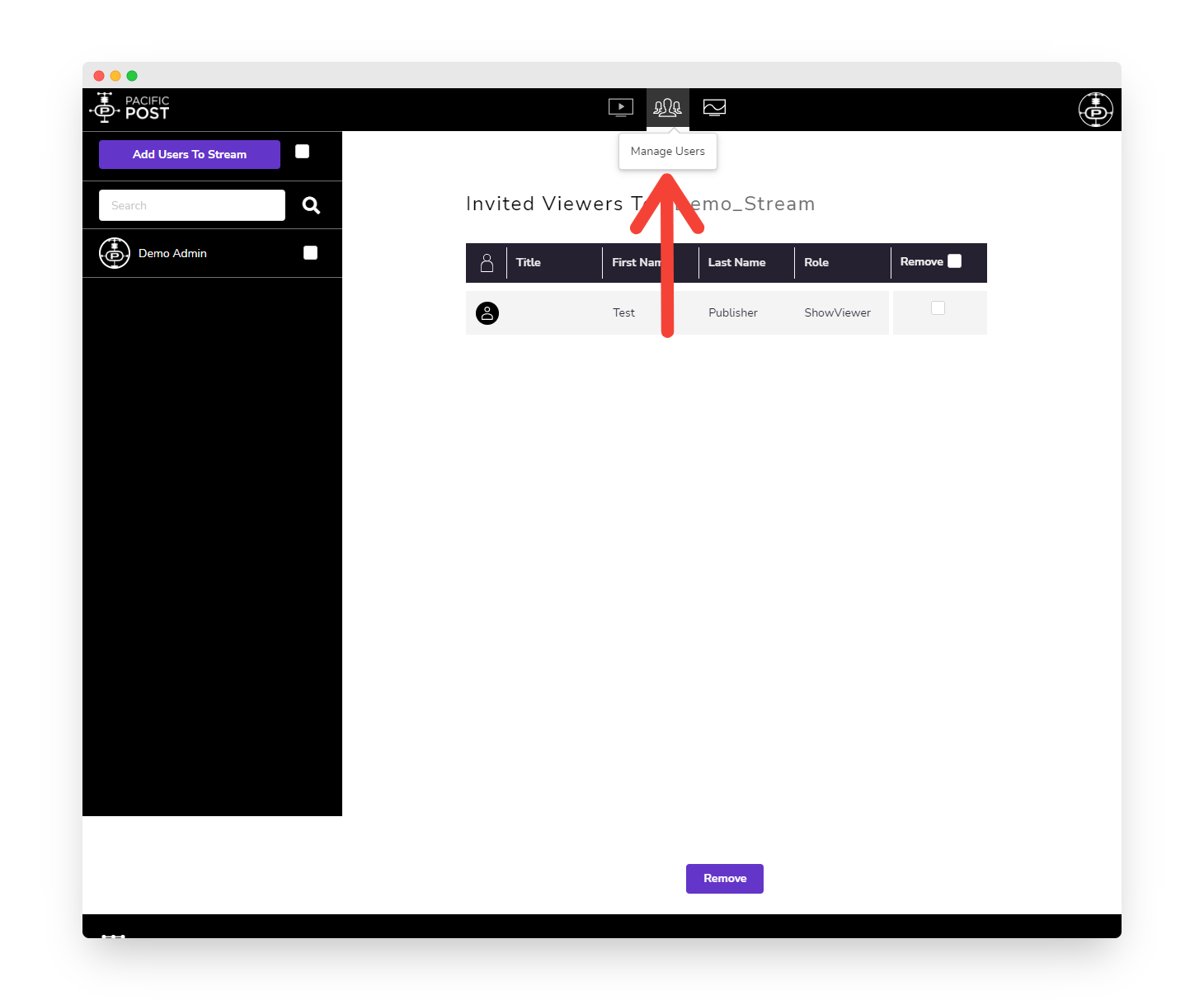
2. You are now in the Show Publisher portal. To ensure that you are on the **Manage Users** page, ensure that the Manage Users icon on the top bar is selected and your screen appears as below. On the left side bar you will notice the list of **Show Viewers** who are not currently invited to the stream. On the right side of the page you will see which **Show Viewers** currently do have access to the stream.

   <figure><img src="https://1921184522-files.gitbook.io/~/files/v0/b/gitbook-x-prod.appspot.com/o/spaces%2F2ewwqbsGrG8ESKUFOkFP%2Fuploads%2FyFW1izbKz7L3hB5mX8SK%2FshowPublisher_manageUsers_highlight_annotated.png?alt=media&amp;token=fbc6fa09-5a98-4b3a-9c3e-ed98f447bc20" alt=""><figcaption><p>Show Publisher Manage Users portal</p></figcaption></figure>
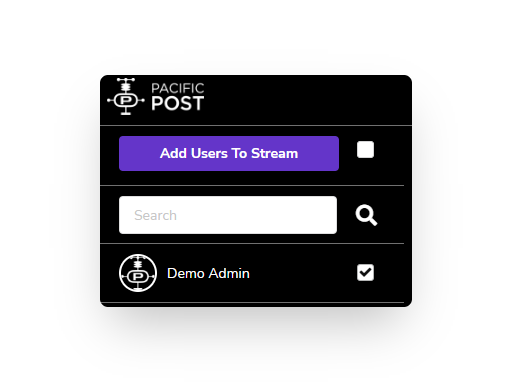
3. To add new **Show Viewers** to the stream click the check box next to their name on the left side bar.

   <figure><img src="https://1921184522-files.gitbook.io/~/files/v0/b/gitbook-x-prod.appspot.com/o/spaces%2F2ewwqbsGrG8ESKUFOkFP%2Fuploads%2FgFS2DQwG3XKZB91tKbs1%2FshowPublisher_manageUsers_addUser_after.png?alt=media&amp;token=53bf2662-7395-4ef5-bcca-c7d2c3121f52" alt=""><figcaption><p>Show Publisher Invite Users User Selection Area</p></figcaption></figure>
4. Once the desired **Show Viewers** are selected in the side bar, click the **Add Users To Stream** button.

   <figure><img src="https://1921184522-files.gitbook.io/~/files/v0/b/gitbook-x-prod.appspot.com/o/spaces%2F2ewwqbsGrG8ESKUFOkFP%2Fuploads%2FrZ2Wkpt45JAFpC2Au5RN%2FshowPublisher_manageUsers_addUser_added.png?alt=media&amp;token=ba9db0e8-e642-4847-942c-fb5f155cd3bf" alt=""><figcaption><p>Show Publisher Manage Users portal with new user added</p></figcaption></figure>

The selected users have now been added to the stream and should show up in the right side of the page.


# Copy and Paste Token into OBS

In order to share a workspace in a stream, the **Show Publisher** will need to find the Token from the **Show Publisher** portal and insert these values into OBS. To complete this task follow the steps below:

1. From the home page, select the **ShowPublisher** portal for the show you would like to publish to.

   <figure><img src="https://1921184522-files.gitbook.io/~/files/v0/b/gitbook-x-prod.appspot.com/o/spaces%2F2ewwqbsGrG8ESKUFOkFP%2Fuploads%2FPxa6l8EzsxeZhCL4gUSO%2FShowSelection_publisher_annotated.png?alt=media&amp;token=9c84d325-f79e-4374-b5a1-60f379054267" alt=""><figcaption><p>Show Selection Home highlighting ShowPublisher</p></figcaption></figure>
2. You are now in the Show Publisher portal. To ensure that you are on the **List Of Streams** page, ensure that the rightmost icon on the top bar is selected and your screen appears as below:

   <figure><img src="https://1921184522-files.gitbook.io/~/files/v0/b/gitbook-x-prod.appspot.com/o/spaces%2F2ewwqbsGrG8ESKUFOkFP%2Fuploads%2FYSOpsQlpQ8Qrahsk4c15%2FshowPublisher_listOfStreams_annotated.png?alt=media&amp;token=215960d5-f6e1-4f00-98b4-1eab4818e315" alt=""><figcaption><p>ShowPublisher List of Streams portal</p></figcaption></figure>
3. On the **List Of Streams** portal you will find your Stream Label and a few buttons for actions to perform on the stream.
   1. Copy Stream Name - Clicking this button will copy the **Stream Name** for OBS into your clipboard.
   2. Copy Token - Clicking this button will copy the **Stream Token** for OBS into your clipboard.
   3. Delete Stream - This will remove the stream completely and will require the creation of a new stream before this **Show Publisher** can stream a workspace or host a stream again.
4. Open OBS and click **Settings**.

   <figure><img src="https://1921184522-files.gitbook.io/~/files/v0/b/gitbook-x-prod.appspot.com/o/spaces%2F2ewwqbsGrG8ESKUFOkFP%2Fuploads%2FVCKl3gf6qnLTZIxAP956%2Fobs_home_settings_annotated.png?alt=media&amp;token=490d9ccd-d00a-4b83-9a81-9dedaf95e5ef" alt=""><figcaption><p>OBS Home highlighting Settings</p></figcaption></figure>
5. From the side bar, select **Stream**.

   <figure><img src="https://1921184522-files.gitbook.io/~/files/v0/b/gitbook-x-prod.appspot.com/o/spaces%2F2ewwqbsGrG8ESKUFOkFP%2Fuploads%2Ft4PcQPnhFEkv0flHQVL9%2FSTREAMpage.png?alt=media&amp;token=2cefa735-13a0-4591-815a-44d8a7c7f7ac" alt=""><figcaption></figcaption></figure>
6. In the web browser click **Copy Stream Name**

   <figure><img src="https://1921184522-files.gitbook.io/~/files/v0/b/gitbook-x-prod.appspot.com/o/spaces%2F2ewwqbsGrG8ESKUFOkFP%2Fuploads%2FMs35U6MLxGNQ89tGoqO4%2FshowPublisher_listOfStreams_copyStreamName.png?alt=media&amp;token=178feff4-06dc-43fb-aef8-be180942d53e" alt=""><figcaption><p>ShowPublisher List of Streams highlighting Copy Stream Name</p></figcaption></figure>
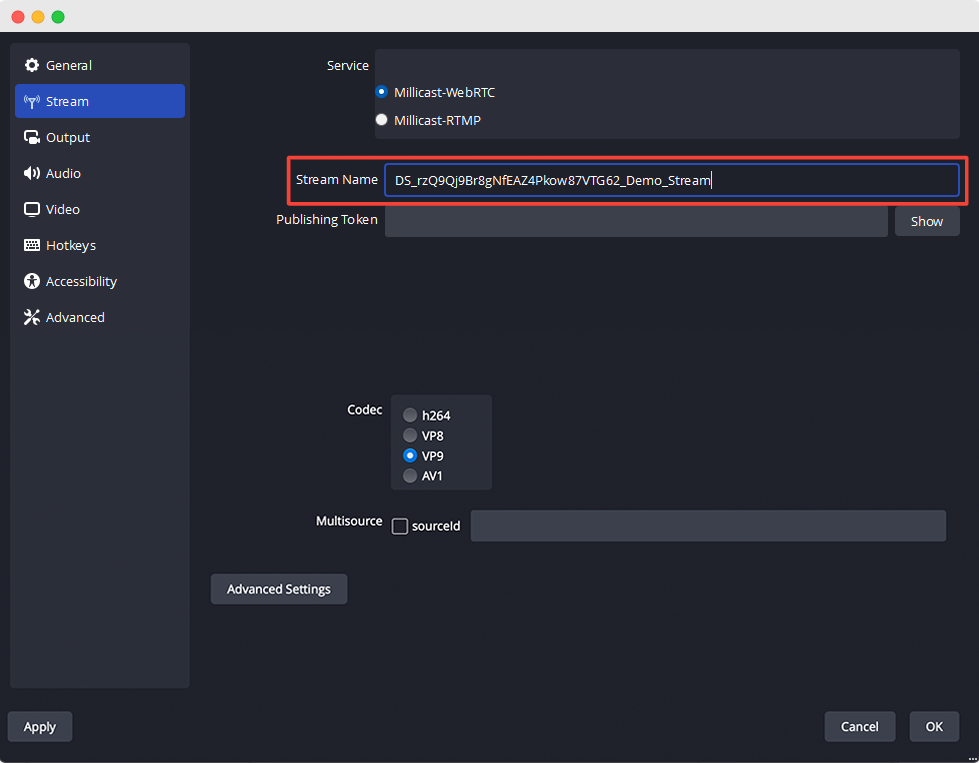
7. In OBS paste into the **Stream Name** box.

   <figure><img src="https://1921184522-files.gitbook.io/~/files/v0/b/gitbook-x-prod.appspot.com/o/spaces%2F2ewwqbsGrG8ESKUFOkFP%2Fuploads%2FcKENkBokQvFADHUfsNj7%2Fstream%20name.png?alt=media&amp;token=fb53fb1a-fbf6-4645-a50a-c3df9657a44e" alt=""><figcaption></figcaption></figure>
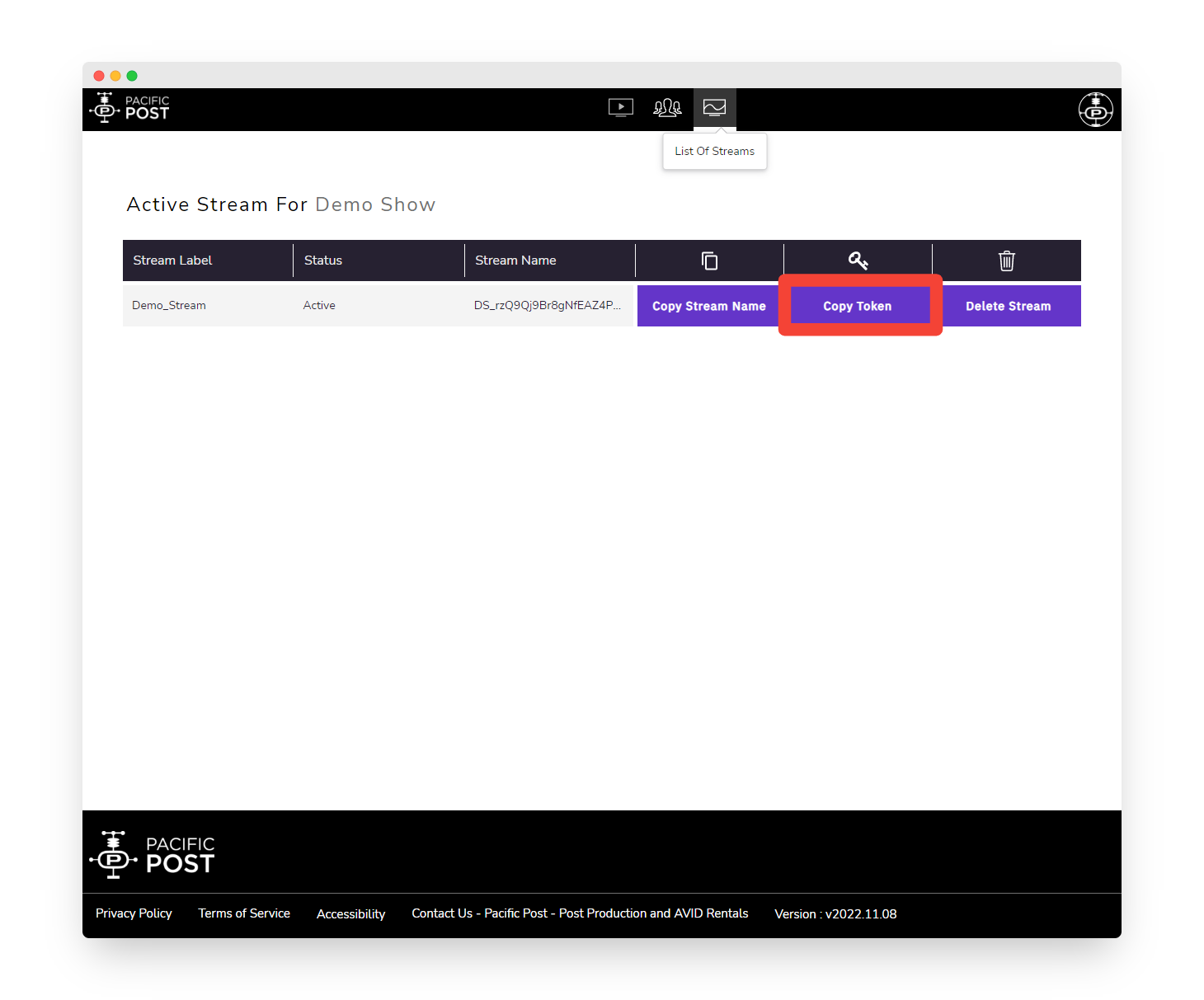
8. Return to the web browser and click **Copy Token**.

   <figure><img src="https://1921184522-files.gitbook.io/~/files/v0/b/gitbook-x-prod.appspot.com/o/spaces%2F2ewwqbsGrG8ESKUFOkFP%2Fuploads%2FSouKZli9syczw38DnaRO%2FshowPublisher_listOfStreams_copyToken.png?alt=media&amp;token=ca83c3a0-5a03-457d-802f-38153ce68e56" alt=""><figcaption><p>ShowPublisher List of Streams highlighting Copy Token</p></figcaption></figure>
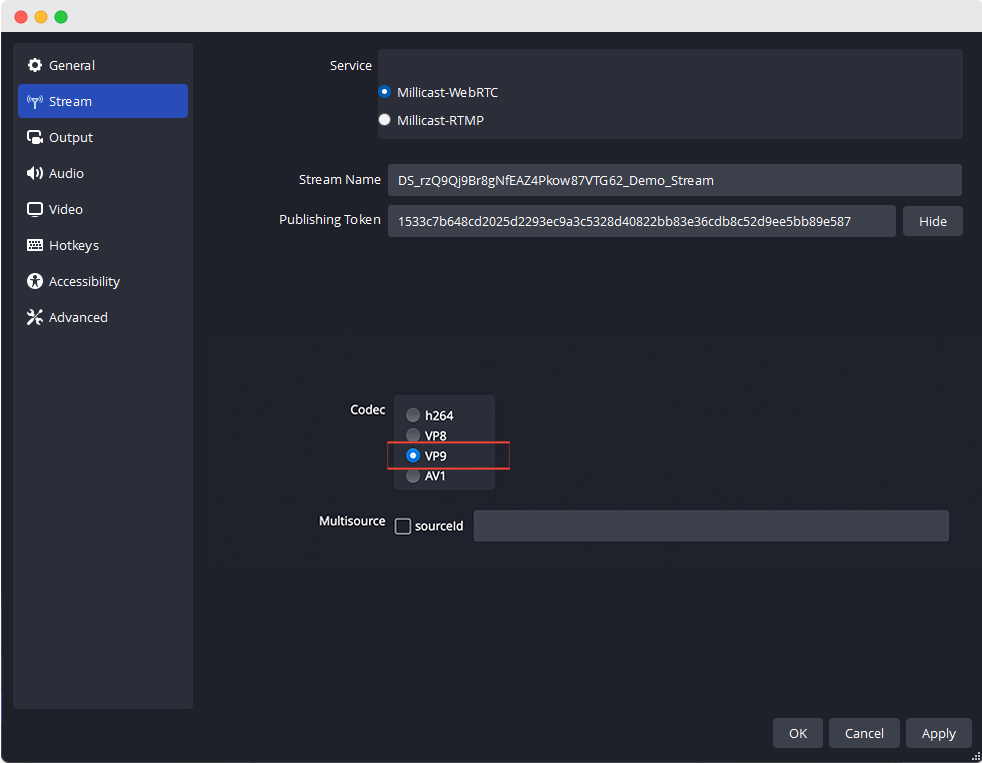
9. Return to OBS and paste into the **Publishing Token** box.\
   \ <mark style="background-color:blue;">It is recommended to also click the</mark> <mark style="background-color:blue;"></mark><mark style="background-color:blue;">**Show**</mark> <mark style="background-color:blue;"></mark><mark style="background-color:blue;">button next to the</mark> <mark style="background-color:blue;"></mark><mark style="background-color:blue;">**Publishing Token**</mark> <mark style="background-color:blue;"></mark><mark style="background-color:blue;">box to ensure that the pasted content is different than the</mark> <mark style="background-color:blue;"></mark><mark style="background-color:blue;">**Stream Name**</mark><mark style="background-color:blue;">.</mark><br>

   <figure><img src="https://1921184522-files.gitbook.io/~/files/v0/b/gitbook-x-prod.appspot.com/o/spaces%2F2ewwqbsGrG8ESKUFOkFP%2Fuploads%2FzS6TSEhU2zvxMXBQ8ZZR%2Fstream%20token.png?alt=media&amp;token=fb18f3ce-25a9-4db3-bc16-c12c46e9031b" alt=""><figcaption></figcaption></figure>
10. In OBS, select **VP9** from the **Codec** box, then click **OK**.

    You are now ready to begin publishing to the stream.

    <figure><img src="https://1921184522-files.gitbook.io/~/files/v0/b/gitbook-x-prod.appspot.com/o/spaces%2F2ewwqbsGrG8ESKUFOkFP%2Fuploads%2F1rJbBTBUIkcyjPLWnvf7%2Fvp9.png?alt=media&amp;token=5cb1ce68-4f11-4c48-a452-cadc83b0a74b" alt=""><figcaption></figcaption></figure>

{% hint style="danger" %}
Please keep the stream name and token **confidential**, sharing these credentials is **NOT** recommended
{% endhint %}


# Rename Stream

The stream name is the title that is displayed on the left side bar in the **Show Viewer** page. The **Show Publisher** has the ability to change the name of this after the stream has been created, this change will reflect for every **Show Viewer** who views the left side bar after the change. To change the name of the stream use the following procedure:

1. From the home page, select the **ShowViewer** portal for the show where you would like to rename a stream.

   <figure><img src="https://1921184522-files.gitbook.io/~/files/v0/b/gitbook-x-prod.appspot.com/o/spaces%2F2ewwqbsGrG8ESKUFOkFP%2Fuploads%2FlhnHngCcJ57HrWMGfUXs%2FshowSelection_admin_viewer_annotated.png?alt=media&amp;token=52ee7b8f-bd9d-460b-87ec-6c1a6d2bbfb7" alt=""><figcaption><p>ShowSelection portal highlighting ShowViewer</p></figcaption></figure>
2. You are now in the Show Viewer portal.

   <figure><img src="https://1921184522-files.gitbook.io/~/files/v0/b/gitbook-x-prod.appspot.com/o/spaces%2F2ewwqbsGrG8ESKUFOkFP%2Fuploads%2F3yMCxrCVfWWI0mvKg4eL%2FshowViewer_selectRoom_home.png?alt=media&amp;token=ce05f806-b7bd-48c3-94ff-db5e65ad42b4" alt=""><figcaption><p>ShowViewer Portal home</p></figcaption></figure>
3. To view the streams that you have access to, hover your mouse to the left side of the screen to expand the stream selection panel.

   <figure><img src="https://1921184522-files.gitbook.io/~/files/v0/b/gitbook-x-prod.appspot.com/o/spaces%2F2ewwqbsGrG8ESKUFOkFP%2Fuploads%2FFfqwQlnVzAqkC2GAFny4%2FshowViewer_selectRoom_sidebar.png?alt=media&amp;token=6454c484-e1b1-4efa-baa2-a83d42f18622" alt=""><figcaption><p>ShowViewer Home stream selection panel</p></figcaption></figure>
4. To rename the stream, click the pencil icon next to the stream that you want to change.

   <figure><img src="https://1921184522-files.gitbook.io/~/files/v0/b/gitbook-x-prod.appspot.com/o/spaces%2F2ewwqbsGrG8ESKUFOkFP%2Fuploads%2FuAaua565GKjmDAgUfE0O%2FshowViewer_selectRoom_sidebar_editName_annotated.png?alt=media&amp;token=efebcb7b-3333-4928-b4a8-6e14805dc391" alt=""><figcaption><p>ShowViewer Home stream selection panel highlighting rename button</p></figcaption></figure>
5. Type in the new name that you would like the stream to be called. Only numbers and characters can be used here, spaces and special characters are not allowed.

   <figure><img src="https://1921184522-files.gitbook.io/~/files/v0/b/gitbook-x-prod.appspot.com/o/spaces%2F2ewwqbsGrG8ESKUFOkFP%2Fuploads%2FJnuF3IVNcXYChtX5B1Xj%2FshowViewer_selectRoom_sidebar_rename.png?alt=media&amp;token=a9dc02cd-6ad4-45cc-9053-5fd1385b7f5b" alt=""><figcaption><p>ShowViewer Home stream selection panel renaming stream</p></figcaption></figure>
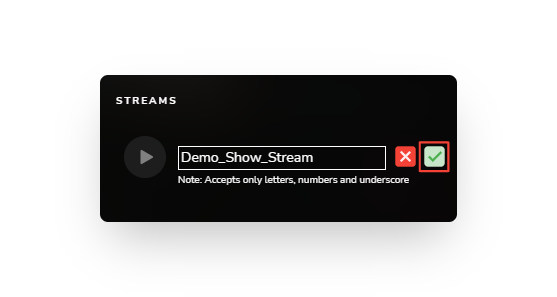
6. When you are satisfied with the new name of the stream, click the green check icon next to the box.

   <figure><img src="https://1921184522-files.gitbook.io/~/files/v0/b/gitbook-x-prod.appspot.com/o/spaces%2F2ewwqbsGrG8ESKUFOkFP%2Fuploads%2FfXOFJvX6eXbCObGsec82%2FshowViewer_selectRoom_sidebar_renameConfirm_annotated.png?alt=media&amp;token=86d88562-260d-47bd-adba-fcb84045938c" alt=""><figcaption><p>ShowViewer Home stream selection rename stream highlighting confirm name change</p></figcaption></figure>
7. You should now notice that the stream name has been changed.

   <figure><img src="https://1921184522-files.gitbook.io/~/files/v0/b/gitbook-x-prod.appspot.com/o/spaces%2F2ewwqbsGrG8ESKUFOkFP%2Fuploads%2FJ8QdYjmnJLIbAbSG8TAI%2FshowViewer_selectRoom_sidebar_renameComplete.png?alt=media&amp;token=6967a935-7600-4dcf-abd6-de098a8633d3" alt=""><figcaption><p>ShowViewer Home stream selection panel with successful rename</p></figcaption></figure>


# Show Viewer Controls

{% embed url="<https://vimeo.com/937965878>" %}

List of topics include:

* [Select Show](/public-wiki/show-viewer-controls/select-show)
* [Select Stream](/public-wiki/show-viewer-controls/select-stream)
* [Enable Camera and Microphone](/public-wiki/show-viewer-controls/enable-camera-and-microphone)


# Select Show

The home page in the PacPost Live portal will show each show that the user has access to. A user can easily swap between multiple shows to manage every production that they are a part of from within the same window.

1. After logging into the PacPost Live portal, the user should be greeted with the home page which would look something like this:

   <figure><img src="https://1921184522-files.gitbook.io/~/files/v0/b/gitbook-x-prod.appspot.com/o/spaces%2F2ewwqbsGrG8ESKUFOkFP%2Fuploads%2FheoCinHHouUPGGzh6SVY%2FshowViewer_home_twoShows.png?alt=media&amp;token=424ff066-79a7-45a9-9cc0-37cec4d972ce" alt=""><figcaption><p>PacPost Live Homepage with multiple shows</p></figcaption></figure>
2. On this page take note of the different rows and columns in the Select show area:

   <figure><img src="https://1921184522-files.gitbook.io/~/files/v0/b/gitbook-x-prod.appspot.com/o/spaces%2F2ewwqbsGrG8ESKUFOkFP%2Fuploads%2FxzRHqlKawjFSJfZIWylA%2FshowViewer_home_selectShow_after.png?alt=media&amp;token=104675f7-52b3-4624-a3ed-59ee1c3059cd" alt=""><figcaption><p>PacPost Live home page Show Selection</p></figcaption></figure>

   1. Show name - This is the full name for the show.
   2. Show code - This is a unique code name for the show.
   3. Status - This is an indication of whether the show is currently active or inactive.
   4. Role - This is an indication of what type of permission this user has on that particular show. Options here include: **ShowViewer**, **ShowPublisher** and **ShowAdmin**
3. click anywhere on the row of the show that you intend to view in order to enter the **ShowViewer** portal for that show.


# Select Stream

Shows can have multiple **Show Publishers** and each **Show Publisher** can have their own stream. To access a stream, first [enter a **ShowViewer** portal for a show](/public-wiki/show-viewer-controls/select-show) and then follow the instructions below to select a stream:

1. Enter the **ShowViewer** room for the show you would like from the homepage, the **ShowViewer** room should look like this:

   <figure><img src="https://1921184522-files.gitbook.io/~/files/v0/b/gitbook-x-prod.appspot.com/o/spaces%2F2ewwqbsGrG8ESKUFOkFP%2Fuploads%2FAFPDSGxKN0c5OfBzFVwD%2FShowViewer_twoShows_first.png?alt=media&amp;token=062c7f09-d0e3-483a-a913-1235228ee423" alt=""><figcaption><p>ShowViewer portal</p></figcaption></figure>
2. Hover your mouse to the left side of the screen to reveal the **Streams** sidebar. In this show there are currently two streams, Editor\_room\_1\_NYC and Color\_room\_LA

   <figure><img src="https://1921184522-files.gitbook.io/~/files/v0/b/gitbook-x-prod.appspot.com/o/spaces%2F2ewwqbsGrG8ESKUFOkFP%2Fuploads%2FSa5qnknGYsmIE0ofVQrq%2FShowViewer_twoShows_second.png?alt=media&amp;token=f166ac5f-e824-40fb-8ec6-03ad375d7ed1" alt=""><figcaption><p>ShowViewer portal with two streams available</p></figcaption></figure>
3. Click the play button of the room you would like to enter.

You should now be in the **Show Viewer** room.


# Enable Camera and Microphone

When you first enter a new **Show Viewer** room, or first access a room from a new computer, the browser you are using to access the room will request that you give the app permissions to use your camera and microphone from your computer. This allows you to participate in the video and audio chat that is part of the **Show Viewer** room and permission should be remembered after the first time. To enable the Camera and Mic please follow the procedure below:

1. Select the room you would like to enter from the **Show Viewer** homepage.

   <figure><img src="https://1921184522-files.gitbook.io/~/files/v0/b/gitbook-x-prod.appspot.com/o/spaces%2F2ewwqbsGrG8ESKUFOkFP%2Fuploads%2FrbmmuuCbWSTJHugwFVBp%2FShowViewer_twoShows_second_annotated.png?alt=media&amp;token=53d275c8-c8bb-4830-99b7-938219bf0240" alt=""><figcaption></figcaption></figure>
2. The following window will pop up near the top of your browser window, select **Allow.**

   <figure><img src="https://1921184522-files.gitbook.io/~/files/v0/b/gitbook-x-prod.appspot.com/o/spaces%2F2ewwqbsGrG8ESKUFOkFP%2Fuploads%2FAUCqdjW20wa8SeNXH7tu%2FShowViewer_cameraPermission_annotated.png?alt=media&amp;token=6b3bf78b-3d6f-43ea-8ce5-dd0f361ff41f" alt=""><figcaption><p>ShowViewer Camera Permission dialogue</p></figcaption></figure>
3. When you enter the room, your camera and microphone will be turned off by default, click these buttons to enable them and to participate in the video/audio conference.

   <figure><img src="https://1921184522-files.gitbook.io/~/files/v0/b/gitbook-x-prod.appspot.com/o/spaces%2F2ewwqbsGrG8ESKUFOkFP%2Fuploads%2FLgFHUIFZQ8LZiNoqt5Oo%2FshowViewer_home_camera_annotated.png?alt=media&amp;token=ee7d1241-0032-47a2-b126-9b096253568b" alt=""><figcaption><p>ShowViewer Stream room highlighting participant tile</p></figcaption></figure>
4.

```
<figure><img src="/files/ySFKoar6EjZpsD1JCU83" alt=""><figcaption><p>Video Chat Tile highlighting microphone and camera buttons</p></figcaption></figure>
```

5. When they are enabled the buttons appear white and you should see a video signal

   <figure><img src="https://1921184522-files.gitbook.io/~/files/v0/b/gitbook-x-prod.appspot.com/o/spaces%2F2ewwqbsGrG8ESKUFOkFP%2Fuploads%2Fe0WRPx6fWWZ2omjlqbTl%2FshowViewer_home_cameraCloseupOn_after.png?alt=media&amp;token=ef3758c8-d764-495d-9a3f-127c37b5e6a7" alt=""><figcaption><p>Video Chat Tile with microphone and camera on</p></figcaption></figure>

{% hint style="success" %}
You may also use the Tilda **`~`** key to toggle the microphone on and off.
{% endhint %}

{% hint style="success" %}
You may also use the back slash key **\\** to toggle the camera on and off.
{% endhint %}

You are now set up and ready to participate in the stream.


# Show Viewer Interface

## Web Application Interface Overview

{% embed url="<https://vimeo.com/937967298>" %}

## Mobile Interface Overview

{% embed url="<https://vimeo.com/937967285>" %}

List of topics include:

* [Show Viewer Sections](/public-wiki/show-viewer-interface/show-viewer-sections)
  * [Invite Guests with Guest Mode](/public-wiki/show-viewer-interface/show-viewer-sections/invite-guests-with-guest-mode)
* [Show Viewer Toolbar Buttons](/public-wiki/show-publisher-controls/create-stream)
* [Group Chat Sidebar](/public-wiki/show-viewer-interface/group-chat-sidebar)
* [Audio & Video Chat](/public-wiki/show-viewer-interface/video-conference-tray)
* [Screen Sharing](/public-wiki/show-viewer-interface/screen-sharing)
* [Show Publisher Additional Controls](/public-wiki/show-viewer-interface/show-viewer-toolbar-buttons/show-publisher-additional-controls)
* [Presentation mode](/public-wiki/show-viewer-interface/presentation-mode)
* [Push to talk](/public-wiki/show-viewer-interface/push-to-talk-ptt-functionality)


# Show Viewer Sections

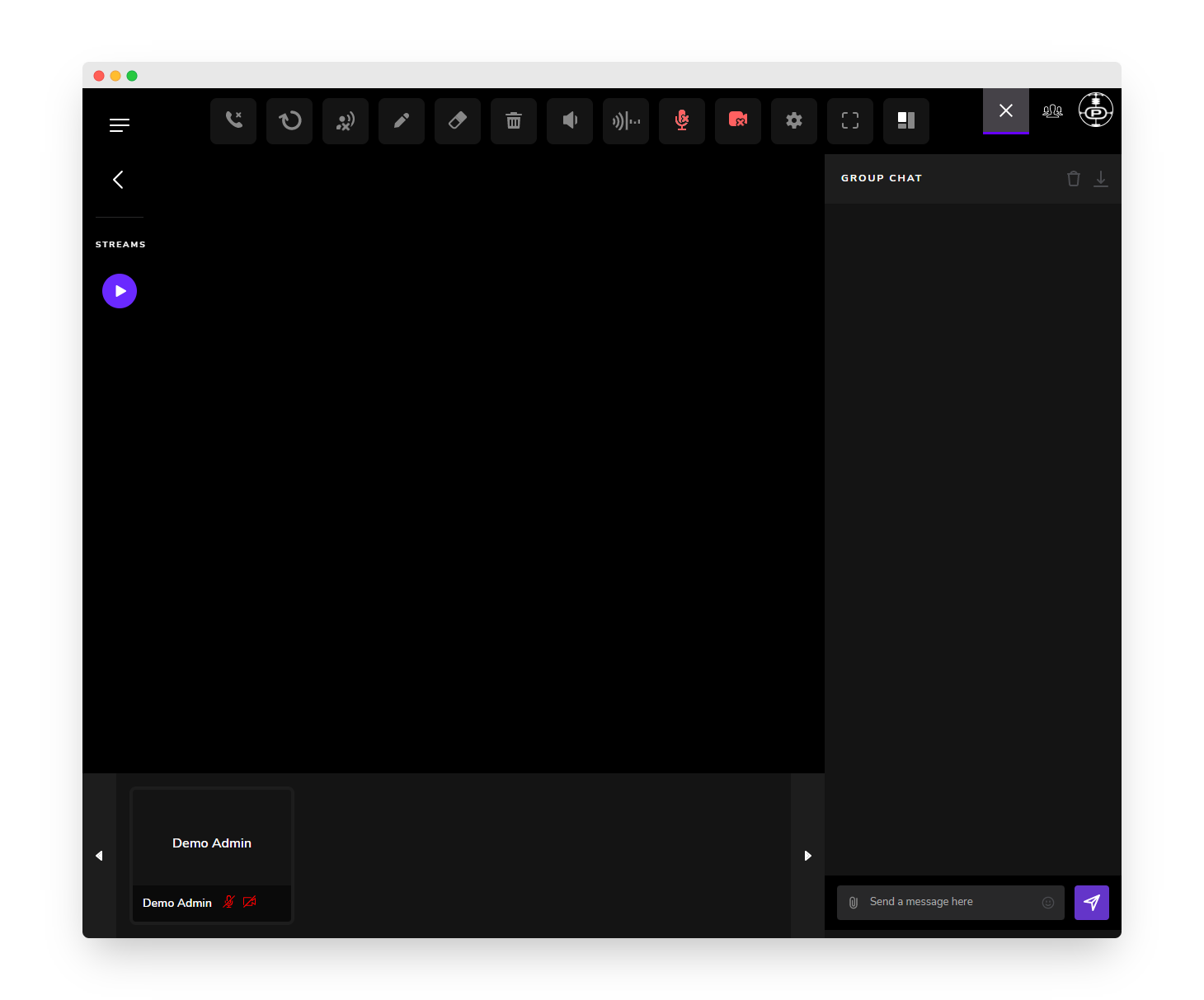
The **ShowViewer** portal is the area where teams gather to participate in Audio, Video and Chat discussions about a published stream in a show. The image below displays the **ShowViewer** show room with major sections labeled:

<figure><img src="https://1921184522-files.gitbook.io/~/files/v0/b/gitbook-x-prod.appspot.com/o/spaces%2F2ewwqbsGrG8ESKUFOkFP%2Fuploads%2F4QcIwsF0fHBIxFhJdVz8%2FshowViewer_Interface_annotated.png?alt=media&amp;token=4be74f16-badd-4f60-9040-30a073e75d75" alt=""><figcaption><p>ShowViewer Show room with sections highlighted</p></figcaption></figure>

1. Streams sidebar / This stream sidebar will expand once the mouse is hovered over the left sidebar. The sidebar will list all streams that the logged in user has access to view and allows for quick switching between streams.
2. Published stream view pane / This area displays the stream that is published by the **Show Publisher.**
3. **ShowViewer** tool bar / These are a group of controls that allow for interaction and video controls related to the stream room.
4. Text Chat / This area is a text chat area that allows for non-verbal communication as well as adding attachments that everyone that is viewing the stream may access.
5. Video Conference Tray / This area displays video (if the viewer has allowed) and shows the audio mute status of each person who is in the stream room. Each person will be represented in their own video conference tile. There is also a full screen control to make that viewer full screen in the browser window.


# Invite Guests with Guest Mode

{% embed url="<https://vimeo.com/937967271>" %}

Pac Post Live now allows for the use of Guest Mode to allow for users to enter and interact with a Show Viewer room without the need for them to first create a Pac Post Live account. To get started with generating a Guest Mode link use the following steps:

1. When signed in as a **Show Publisher** and accessing a stream, you will find a new icon at the top right of the Show Portal. This is the Guest Mode icon.\
   \
   If you do not see this icon, ensure that your **Show Admin** has enabled [**Allow Guest Invite**](/public-wiki/show-admin-controls/inviting-users) for your account

   <figure><img src="https://1921184522-files.gitbook.io/~/files/v0/b/gitbook-x-prod.appspot.com/o/spaces%2F2ewwqbsGrG8ESKUFOkFP%2Fuploads%2FZ9ZKRcOXMzJRoCwzkocq%2FshowViewer_Interface_guest_annotated.png?alt=media&amp;token=2b8d34e1-4426-42b2-aeba-e5827a12bfa0" alt=""><figcaption><p>ShowViewer portal Highlighting Guest Mode icon</p></figcaption></figure>

2. Inside the Guest Mode panel, to create a new guest link click the Plus symbol (+) on the top left of the panel.

   <figure><img src="https://1921184522-files.gitbook.io/~/files/v0/b/gitbook-x-prod.appspot.com/o/spaces%2F2ewwqbsGrG8ESKUFOkFP%2Fuploads%2Fzegzvw8tT5519FltiZAG%2FshowViewer_guestMode_after_annotated1.png?alt=media&amp;token=de608c5d-9128-43ee-9b95-3dfe082756f5" alt=""><figcaption><p>Guest Mode Panel with + icon highlighted</p></figcaption></figure>

3. A confirmation panel will appear, confirm the action by clicking Yes.

   <figure><img src="https://1921184522-files.gitbook.io/~/files/v0/b/gitbook-x-prod.appspot.com/o/spaces%2F2ewwqbsGrG8ESKUFOkFP%2Fuploads%2Fv20sufx6IyWDWUH7WjVo%2FshowViewer_guestMode_generateLink_confirmation_after.png?alt=media&amp;token=40f4071e-57c1-4bc4-8a7e-9c3e9d083af3" alt=""><figcaption><p>Guest Mode Generate Link Confirmation Dialogue</p></figcaption></figure>

4. You will now see in the Guest Mode panel and Guest Link is now active.&#x20;

5. There is one more option that you may or may not want to set. Below the new Guest Link you will find a toggle labeled **Auto Accept Guests.** With this toggle active, guests will be automatically permitted into the room without any approval from the Show Publisher. When the toggle is inactive, guests will need to be individually approved in order to be admitted into the stream.

6. Next you will share the link and Passcode by copying this information from the Guest Mode Panel. To copy the info, click the Purple clipboard button to the left of the Link and Passcode.

   <figure><img src="https://1921184522-files.gitbook.io/~/files/v0/b/gitbook-x-prod.appspot.com/o/spaces%2F2ewwqbsGrG8ESKUFOkFP%2Fuploads%2FxHqwz4G0X43avzFEGGcR%2FshowViewer_guestMode_panelLink_after_annotated.png?alt=media&amp;token=aa99c14c-6098-4f4f-9c00-28e6d662913e" alt=""><figcaption><p>Guest Mode Panel with Copy Link Information button Highlighted</p></figcaption></figure>

7. Paste and send this information with guests for whom you would like to invite to the stream.

8. When guests click the stream they are asked to enter their **First Name**, **Last Name**, and **Confidential Passcode** in order to join the room. When they join, if **Auto Accept Guests** is enabled, they will enter the room automatically. If it is disabled, you will see the following appear in the Guest Mode Panel when they attempt to enter:

   <figure><img src="https://1921184522-files.gitbook.io/~/files/v0/b/gitbook-x-prod.appspot.com/o/spaces%2F2ewwqbsGrG8ESKUFOkFP%2Fuploads%2FtGnmwR63M2jEkXI9ADQm%2FshowViewer_guestMode_guestWaiting_after.png?alt=media&amp;token=f1646862-2506-4c74-910d-bff9e858e2fc" alt=""><figcaption><p>Guest Mode Panel with guest waiting for approval to enter</p></figcaption></figure>

9. Click **Allow** on the guest you would like to permit into the room. You should now see that the guest has entered room. At any point you may remove the guest by clicking the **Remove** button next to their name.

   <figure><img src="https://1921184522-files.gitbook.io/~/files/v0/b/gitbook-x-prod.appspot.com/o/spaces%2F2ewwqbsGrG8ESKUFOkFP%2Fuploads%2FnR95I0RgfVQ0jtHAAw5k%2FshowViewer_guestMode_guestActive.png?alt=media&amp;token=4b10c35b-e793-40fa-901d-ec1061003924" alt=""><figcaption><p>ShowViewer with Guest Active in the stream.</p></figcaption></figure>

If All of your guests are in the stream and you no longer want to permit new guests from joining. You may click the **Trash** icon next to the Guest link to disable new guests from joining.  Guests that are already part of the stream will remain Active in the stream.


# Show Viewer Toolbar Buttons

<figure><img src="https://1921184522-files.gitbook.io/~/files/v0/b/gitbook-x-prod.appspot.com/o/spaces%2F2ewwqbsGrG8ESKUFOkFP%2Fuploads%2F4QcIwsF0fHBIxFhJdVz8%2FshowViewer_Interface_annotated.png?alt=media&amp;token=4be74f16-badd-4f60-9040-30a073e75d75" alt=""><figcaption><p>ShowViewer Show room with sections highlighted</p></figcaption></figure>

The toolbar (**area 3 from the above diagram**) is the area where tools exist that allow the viewer to interact with the stream. Below are the tools from left to right:

* ![](https://1921184522-files.gitbook.io/~/files/v0/b/gitbook-x-prod.appspot.com/o/spaces%2F2ewwqbsGrG8ESKUFOkFP%2Fuploads%2FjEcW5tMwJZ04BE184CvQ%2FshowViewer_btn_leaveConference_before.png?alt=media\&token=deb260b0-98c1-4260-ab26-fa9944a3434f)\
  Leave Conference / This button allows one to exit the conference.
* ![](https://1921184522-files.gitbook.io/~/files/v0/b/gitbook-x-prod.appspot.com/o/spaces%2F2ewwqbsGrG8ESKUFOkFP%2Fuploads%2FvORfZk6ZtqUWjFqPabQA%2FshowViewer_btn_reloadPage_before.png?alt=media\&token=8a6bbc01-2708-4792-80ee-f8f8476cf669)\
  Reload Page / This button reloads the **ShowViewer** page, if the page has any errors use this button to refresh the stream.
* <img src="https://1921184522-files.gitbook.io/~/files/v0/b/gitbook-x-prod.appspot.com/o/spaces%2F2ewwqbsGrG8ESKUFOkFP%2Fuploads%2FIyVsKJz61z774WgvbwOl%2FshowViewer_btn_tools_before.png?alt=media&amp;token=5fe989ee-11ef-4e66-a516-963f419a492d" alt="" data-size="original">  \
  Tools / The pencil icon reveals two ways to draw on top of the **Published Stream View Pane**, anything that is drawn or circled with this tool is visible to every person that is currently inside the room. Each **Show Viewer** in the room will have a different color automatically assigned to the pencil or circle marks they make.
* ![](https://1921184522-files.gitbook.io/~/files/v0/b/gitbook-x-prod.appspot.com/o/spaces%2F2ewwqbsGrG8ESKUFOkFP%2Fuploads%2FAdhZrrX4XejSLaU5jqtm%2FshowViewer_btn_eraser_before.png?alt=media\&token=fffc1bf7-3cc9-4c8c-9c97-d129f4a39cea)\
  Eraser / This tools allows for viewers to erase marks that are made via the **Pencil** or **Circle** tools above.
* ![](https://1921184522-files.gitbook.io/~/files/v0/b/gitbook-x-prod.appspot.com/o/spaces%2F2ewwqbsGrG8ESKUFOkFP%2Fuploads%2FYiPurxbN9bvGQqndUemP%2FshowViewer_btn_clear_before.png?alt=media\&token=090b2dd2-7268-476a-bf8a-7281b0dd06bd)\
  Clear / This tool clears all markings made by all viewers for everyone in the stream room.
* ![](https://1921184522-files.gitbook.io/~/files/v0/b/gitbook-x-prod.appspot.com/o/spaces%2F2ewwqbsGrG8ESKUFOkFP%2Fuploads%2FJOCWjtO8BIvtVQt3ggfd%2FshowViewer_btn_volume_before.png?alt=media\&token=4ffdc0a2-be49-49db-b129-f9e2a1f9017e)\
  Published Stream Volume Control / This controls the volume of the stream that is published by the **Stream Publisher** in the **Published Stream View Pane** only. This does not affect the volume of the **Stream Viewers** in the room, nor how loud your microphone is to others in the video chat. Clicking the speaker icon will toggle **mute** for this volume control.

{% hint style="warning" %}
It is recommended that the **Show Publisher** set this volume to **mute** when publishing as to prevent doubling up or reverb of the audio that is being sent over the show stream as well as the accompanying video chat that the **Show Publisher** is also participating in.
{% endhint %}

* ![](https://1921184522-files.gitbook.io/~/files/v0/b/gitbook-x-prod.appspot.com/o/spaces%2F2ewwqbsGrG8ESKUFOkFP%2Fuploads%2F9845CZZEYdn4aWiOLMAH%2FshowViewer_btn_noiseCancellation_before.png?alt=media\&token=c56aff39-f180-46d9-9d5d-d58ed2a8321d)\
  Noise Cancellation / This tool will enable background noise cancellation for the Audio/Video chat interaction in the stream room. When this icon is surrounded in **green**, noise cancellation is active for your microphone that goes out to others in the video chat. This only affects how you are heard by other people, not how other people are heard by you.
* ![](https://1921184522-files.gitbook.io/~/files/v0/b/gitbook-x-prod.appspot.com/o/spaces%2F2ewwqbsGrG8ESKUFOkFP%2Fuploads%2F7sLtG41jL1qXwnaYFntv%2FshowViewer_btn_mic_before.png?alt=media\&token=557cf936-cde9-4c29-bd1a-c2c8ce7bfc68)![](https://1921184522-files.gitbook.io/~/files/v0/b/gitbook-x-prod.appspot.com/o/spaces%2F2ewwqbsGrG8ESKUFOkFP%2Fuploads%2FGym8iL5S9YiZSy5E5H5i%2FshowViewer_btn_video_before.png?alt=media\&token=b99318f6-552e-4d24-9336-3d8b98c14ba4)\
  Audio & Video Mute Control / These buttons allow for the control of whether of not the current viewer desires to have their camera and microphone heard and seen by others in the stream room. Red with an **x** means that the microphone or camera are disabled

{% hint style="warning" %}
The camera and microphone are **disabled** **by default** every time a viewer enters a room.
{% endhint %}

* <img src="https://1921184522-files.gitbook.io/~/files/v0/b/gitbook-x-prod.appspot.com/o/spaces%2F2ewwqbsGrG8ESKUFOkFP%2Fuploads%2F33Cnp1m6mSgf8bTk66tz%2FshowViewer_btn_conferenceSettings_before.png?alt=media&amp;token=aea1c0aa-b7f3-4aa2-bdf0-efef172d2bf8" alt="" data-size="original">\
  Select Camera / This tool allows the viewer to select which camera and which microphone are used for the Audio & Video chat with other viewers in the stream room. This tool also allows the viewer to share their screen by selecting the **Share Your Desktop** option under the first drop down menu.
* ![](https://1921184522-files.gitbook.io/~/files/v0/b/gitbook-x-prod.appspot.com/o/spaces%2F2ewwqbsGrG8ESKUFOkFP%2Fuploads%2FFjLh7xI56Grrv25kqPap%2FshowViewer_btn_fullScreen_before.png?alt=media\&token=4b2cbe84-3bbb-4b7f-8342-f00c86cee88d)\
  Full Screen Video / This tool makes the **Published Stream View Pane** full screen. In enabling this mode the viewer will only be able to view the **Published Stream** and will be unable to see the other viewers in the video chat as well as the text chat. The viewer will still be able to hear the other viewers that have their microphones enabled in the stream room. To exit full screen, hit the **escape** key on the keyboard.
* ![](https://1921184522-files.gitbook.io/~/files/v0/b/gitbook-x-prod.appspot.com/o/spaces%2F2ewwqbsGrG8ESKUFOkFP%2Fuploads%2FUXRUfZ7TgDnWmtTJL2yd%2FshowViewer_btn_invert_before.png?alt=media\&token=fef37d8d-c18b-4f51-b81b-e1e5122a2a7e)\
  Invert Layout / This tool will toggle the position of the Audio & Video chat to either the top or bottom of the screen.


# Show Publisher Additional Controls

The **Show Publisher** has additional controls that are available only to them in the **ShowViewer** room. These controls are as follows:

### Show Publisher Additional Toolbar Buttons

* ![](https://1921184522-files.gitbook.io/~/files/v0/b/gitbook-x-prod.appspot.com/o/spaces%2F2ewwqbsGrG8ESKUFOkFP%2Fuploads%2FwAIg39w6X5vzxk6key9r%2FshowViewer_leaveConferencePublisher_before.png?alt=media\&token=389ad86e-4daa-4e09-be70-8c1fead65beb)\
  End Conference for All & Leave Conference / This allows the **Show Publisher** to end the conference for all viewers simultaneously, removing everyone from the room. The Leave Conference button removes **only** the **Show Publisher** from the room, allowing the interaction between other viewers to continue.
* ![](https://1921184522-files.gitbook.io/~/files/v0/b/gitbook-x-prod.appspot.com/o/spaces%2F2ewwqbsGrG8ESKUFOkFP%2Fuploads%2F9d5JCJGWpeTNKJXM853E%2FshowViewer_muteAllPublisher_before.png?alt=media\&token=fbfb31d8-67f5-40e4-abba-f6e370da52e4)\
  Mute All / This button will force **mute** all viewers in the room.

### Publisher Panel

<figure><img src="https://1921184522-files.gitbook.io/~/files/v0/b/gitbook-x-prod.appspot.com/o/spaces%2F2ewwqbsGrG8ESKUFOkFP%2Fuploads%2F4bkJdkQf9x8RGaDX94cC%2FshowViewer_btn_publisherPanel_after.png?alt=media&amp;token=50bd2f2f-7f0f-45d4-9027-387c5d5a832c" alt=""><figcaption><p>ShowViewer Publisher Panel Button</p></figcaption></figure>

The **Show Publisher** also has access to a panel on the right side of the screen that allows for quick editing of who is invited to the room.

<figure><img src="https://1921184522-files.gitbook.io/~/files/v0/b/gitbook-x-prod.appspot.com/o/spaces%2F2ewwqbsGrG8ESKUFOkFP%2Fuploads%2FsstZNdKvOKYZOAw4Az5e%2FshowViewer_publisherPanel_after.png?alt=media&amp;token=46eea169-cdc4-4b89-88b6-1dc3fb4e328b" alt=""><figcaption><p>ShowViewer Publisher Panel Added Tab</p></figcaption></figure>

The **Added** tab shows who currently has access to the room. For each viewer, if they are not currently in the room their status will be red, if they are in the room their status will be green.

* To remove a user, uncheck the box next to their name and click **Apply Changes**. Their name should no longer appear in the **Added** panel.

  <figure><img src="https://1921184522-files.gitbook.io/~/files/v0/b/gitbook-x-prod.appspot.com/o/spaces%2F2ewwqbsGrG8ESKUFOkFP%2Fuploads%2FYLe6ymszSMOdrscpdGGy%2FshowViewer_publisherPanel2_after.png?alt=media&amp;token=e7f1869e-2881-4fc8-872f-21978c9214eb" alt=""><figcaption><p>ShowViewer Publisher Panel Not Added Tab</p></figcaption></figure>

The **Not Added** tab is a list of every viewer who currently does not have access to the show.

* To add a user, check the box next to the name of the viewer and click **Apply Changes.** Their name should no longer appear in the **Not Added** panel and should now appear in the **Added** panel.


# Group Chat Sidebar

<figure><img src="https://1921184522-files.gitbook.io/~/files/v0/b/gitbook-x-prod.appspot.com/o/spaces%2F2ewwqbsGrG8ESKUFOkFP%2Fuploads%2F4QcIwsF0fHBIxFhJdVz8%2FshowViewer_Interface_annotated.png?alt=media&amp;token=4be74f16-badd-4f60-9040-30a073e75d75" alt=""><figcaption><p>ShowViewer Show room with sections highlighted</p></figcaption></figure>

The group chat sidebar (**area 4 from the above diagram**) is the area where every viewer in the room can participate in a text chat.

<figure><img src="https://1921184522-files.gitbook.io/~/files/v0/b/gitbook-x-prod.appspot.com/o/spaces%2F2ewwqbsGrG8ESKUFOkFP%2Fuploads%2F0aJIxlR7dgcIL7xvvbPj%2FshowViewer_groupChatTextEntry_before.png?alt=media&amp;token=e860cb7a-5f29-41f6-8769-8823e8e831fa" alt=""><figcaption><p>Group Chat Text Entry</p></figcaption></figure>

* On the bottom of the window is the text entry box. In that box, on the left side there is a paperclip icon, when selecting this icon a viewer is able to select a file to upload to the group chat that will allow every other viewer in the room to download.
* To enter text, click in the text entry area that is labeled **Send a message here** and begin typing. Once you are ready to send, either press the **enter** or **return** key on the keyboard, or click the purple send icon on the far right of the pane.
* There is also an emoji selector button in the right side of the text entry box that allows the viewer to easily insert emojis into the text chat.

On the top of the group chat window, next to the words **GROUP CHAT** there are two buttons:

<figure><img src="https://1921184522-files.gitbook.io/~/files/v0/b/gitbook-x-prod.appspot.com/o/spaces%2F2ewwqbsGrG8ESKUFOkFP%2Fuploads%2FyGYRHgQJz202l5H92ets%2FshowViewer_groupChatTopBar_before.png?alt=media&amp;token=b31b304f-316f-4590-94d4-a8f127d3e8c3" alt=""><figcaption><p>Group Chat Top Controls</p></figcaption></figure>

* The left button is a trash can, this clears the chat for every viewer in the room.
* The down arrow is the chat download button. Clicking this button downloads a chat transcript to your computer.
* Above that window, to the left of the PacPost Live icon is an **X** button, this closes the chat from the view, clicking that button again opens the chat back up, resuming where you left off.


# Video Conference Tray

<figure><img src="https://1921184522-files.gitbook.io/~/files/v0/b/gitbook-x-prod.appspot.com/o/spaces%2F2ewwqbsGrG8ESKUFOkFP%2Fuploads%2F4QcIwsF0fHBIxFhJdVz8%2FshowViewer_Interface_annotated.png?alt=media&amp;token=4be74f16-badd-4f60-9040-30a073e75d75" alt=""><figcaption><p>ShowViewer Show room with sections highlighted</p></figcaption></figure>

The Video Conference Tray (**area 5 from the above diagram**) is the area where every viewer can see the other viewers that are in the stream room. There are a few controls in that area to make note of:

<figure><img src="https://1921184522-files.gitbook.io/~/files/v0/b/gitbook-x-prod.appspot.com/o/spaces%2F2ewwqbsGrG8ESKUFOkFP%2Fuploads%2FdCRgvi84cRghLfzOLFhn%2FShowViewer_videoTile_muted_after.png?alt=media&amp;token=5aa9cd43-19b8-4fdb-943b-bdb428c7ca1a" alt=""><figcaption><p>ShowViewer Video Conference Tile</p></figcaption></figure>

Each video tile will have the name of the viewer as well as 2-3 buttons (depending on whether that viewer has video or screen sharing enabled). When looking at the tile that represents your viewer, you will be able to click the microphone and video buttons. Red and a slash through them means they are muted/disabled. These buttons are in sync with the audio and video mute buttons that exist in the **ShowViewer** tool bar (area **c** from the above diagram).

If video is enabled for a particular viewer in the room, a third icon will appear next to the video status button for that viewer. This button will have one of two actions depending on whether or not the viewer clicks on their own box or the box of another viewer in the room.

<figure><img src="https://1921184522-files.gitbook.io/~/files/v0/b/gitbook-x-prod.appspot.com/o/spaces%2F2ewwqbsGrG8ESKUFOkFP%2Fuploads%2FhVRGfsjEXxCy4hope7kn%2FshowViewer_virtualBackground_selector_before.png?alt=media&amp;token=d948f6bf-78c3-4977-b008-03913ade82f0" alt=""><figcaption><p>ShowViewer Video Conference Tile Virtual Background dialogue</p></figcaption></figure>

1. If the viewer clicks on the box next to the video button on their own tile, a window will pop up allowing them to use effects to blur our the background behind their face in the video that others see in the video chat.
2. If they click on this icon for another viewer in the room, it will make this viewer full screen. The viewer will still be able to hear other viewers that are participating in the room but will only be able to see the video feed or screen share of the viewer that is full screen. To exit full screen hit the **escape** key on the keyboard.


# Screen Sharing

Any viewer has the ability to share their screen with every other viewer in the stream room. Doing so will replace their video feed with the selected screen or window that the viewer chose to share. Other viewers can then make that feed full screen in order to see the screen share more clear. Use the following procedure to start screen sharing:

1. Ensure that the video feed is enabled.
2. On the **ShowViewer Tool bar** on the top of the screen, select the gear icon, this will open the Camera and microphone selection pane.

   <figure><img src="https://1921184522-files.gitbook.io/~/files/v0/b/gitbook-x-prod.appspot.com/o/spaces%2F2ewwqbsGrG8ESKUFOkFP%2Fuploads%2FJKmb0G9uQE3TDEWPSSQu%2FshowViewer_btn_conferenceSettings_after.png?alt=media&amp;token=4028e1bf-9a70-48e7-85a7-cceaf68509c4" alt=""><figcaption><p>ShowViewer Tool bar video and microphone selection</p></figcaption></figure>
3. In the first drop down menu, select **Share Your Desktop.**

   <figure><img src="https://1921184522-files.gitbook.io/~/files/v0/b/gitbook-x-prod.appspot.com/o/spaces%2F2ewwqbsGrG8ESKUFOkFP%2Fuploads%2FOuUeHnVIn2Xo9HgtzMEP%2FshowViewer_screenShare_after.png?alt=media&amp;token=83044c7b-3972-4bfa-917b-b2a9b5265590" alt=""><figcaption><p>ShowViewer Screen Share dialogue</p></figcaption></figure>
4. A window will pop up, prompting you to select which screen, window, or tab you would like to share. Make a selection and select **Share**. You are now sharing your screen for every viewer.
5. To end screen sharing either disable the video feed or go back to the same gear menu and select your camera from the first drop down menu.


# Presentation Mode

It is a Show Publisher feature

**Presentation Mode** is designed to optimize performance during large audience sessions (20+ participants). When enabled by the **Publisher**, all viewers’ cameras are turned off automatically to ensure smoother streaming and audio quality.

#### **Step 1 – Initial State**

* **Button Label:** `Presentation Mode OFF`
*

```
<div align="left"><figure><img src="/files/LK38jTBuh9brT2RGAFvg" alt="" width="58"><figcaption></figcaption></figure></div>
```

* **Icon Color:** Black
* **Behavior:**
  * All users (Publisher + Viewers) can toggle their cameras freely.
*

```
<div align="left"><figure><img src="/files/lAwYCVsdAZ8kyzbPcHfU" alt="" width="245"><figcaption></figcaption></figure></div>
```

***

#### **Step 2 – Publisher Clicks Button**

When the **Publisher** clicks the “Presentation Mode” button:

* Button turns to be RED
* A **confirmation modal** appears.

**Modal Details:**

* **Title:** `Enable Presentation Mode?`
* **Body:**\
  “This will turn off all viewers' cameras to optimize performance for large audiences (20+ participants).\
  Viewers will still be able to see the stream with audio conference only.”
* **Additional Option:**
  * ☑️ `Do not show this message again` (checkbox)
* **Buttons:**
  * `[Cancel]`
  * `[Enable Presentation Mode]`\ <br>

**Behavior:**

* If the Publisher selects **“Do not show this message again”**, the system will:
  * Remember the user’s preference.
  * **Skip showing the confirmation popup** on future clicks of the “Presentation Mode” button.
  * Directly toggle Presentation Mode ON/OFF.
*

```
<figure><img src="/files/qut7RmzxQ5qvwF5Otjca" alt=""><figcaption></figcaption></figure>
```

***

#### **Step 3 – Publisher Confirms**

Upon confirmation:

* The button **icon turns RED**.
* The button label updates to **“Presentation Mode ON”**.
* The system sends an **informational message** to all viewers:

> “Presentation Mode is now ON. Your camera has been turned off by the Publisher to optimize performance.”

<div align="left"><figure><img src="https://1921184522-files.gitbook.io/~/files/v0/b/gitbook-x-prod.appspot.com/o/spaces%2F2ewwqbsGrG8ESKUFOkFP%2Fuploads%2FzF6HanP8fPNhucGcTfPP%2FUntitled%203.png?alt=media&amp;token=2c7d89ba-d55f-45aa-a3b3-6bbf2f5ddcae" alt="" width="317"><figcaption></figcaption></figure></div>

***

#### **Step 4 – Effect on Viewers**

* All viewers’ cameras are **immediately turned OFF**.
* Camera controls for viewers are **disabled** until Presentation Mode is turned off.
* When clicks on Video icon, observes a message.
* *"The publisher has turned on presentation mode, so the video is disabled*".

  <div align="left"><figure><img src="https://1921184522-files.gitbook.io/~/files/v0/b/gitbook-x-prod.appspot.com/o/spaces%2F2ewwqbsGrG8ESKUFOkFP%2Fuploads%2FqneUgDm56849MtH1lMbu%2FOFF.png?alt=media&amp;token=c953e55a-7099-448f-b499-8cb5e5169334" alt="" width="375"><figcaption></figcaption></figure></div>

***

#### **Step 5 – Publisher Toggles OFF**

When the **Publisher** clicks the button again:

* The icon reverts to **BLACK**.
* The label changes to **“Presentation Mode OFF”**.
* Viewers receive an **informational message**:

> *“Presentation Mode is OFF. You may now turn on your camera.*”

***

#### **Step 6 – Viewers’ Actions After OFF**

* Once Presentation Mode is turned off:
  * Viewers regain control of their camera settings.
  * They can **turn on/off their cameras** as desired.

<div align="left"><figure><img src="https://1921184522-files.gitbook.io/~/files/v0/b/gitbook-x-prod.appspot.com/o/spaces%2F2ewwqbsGrG8ESKUFOkFP%2Fuploads%2F6orvHHSdjggzc0G7sShN%2Fvideooff.png?alt=media&amp;token=8e4ac534-35eb-41bc-ad38-8f6a13afc4eb" alt="" width="375"><figcaption></figcaption></figure></div>


# Push to Talk (PTT) Functionality

Introducing Push to Talk, a convenient way for users to control their microphone with a single keyboard action during live sessions.

* **Press-and-Hold to Unmute:**
  * Users can now **press and hold the Right Arrow key (→)** to temporarily unmute their microphone.<br>
  * Releasing the key automatically mutes the mic again.
*

```
<div align="left"><figure><img src="/files/qyKQXgxqsWfjV35kWjKX" alt="" width="207"><figcaption></figcaption></figure></div>
```

* **Visual Indicator:**
  * On Video tray icon turns to be white, indicating that Audio is active.
* **Improved Accessibility:**
  * Enables smooth and hands-free mic control during presentations, Q\&A sessions, and large meetings.

**Why It Matters**

* Allows fluid communication without permanently toggling mic states.
* Ideal for moderated discussions and live events.


# How to use the break out rooms?

Introducing **Breakout Rooms** – Beta Feature for Chrome Users Only! We’re thrilled to unveil Breakout Rooms, a new beta feature exclusively for Chrome users. \
This feature offers a seamless way to collaborate with your team, whether through screen sharing or discussions about upcoming streaming sessions. \
\
**How is this different from our standard streaming rooms?** \
While our standard streaming rooms are designed for remote collaboration during live streams, Breakout Rooms address broader collaboration needs. Based on your feedback, we discovered that switching between PacPost.live and other platforms like Zoom for meetings was cumbersome. Breakout Rooms eliminate this hassle by providing an all-in-one solution, ensuring smoother and more efficient team interactions. \
\
The best part - Anyone invited as a viewer can access and use Breakout Rooms at no additional cost! Your feedback has been instrumental in shaping this feature. We encourage you to try it out and share your thoughts so we can continue to improve.


# pacpost.io

You may initiate a new session directly from Avid Media Composer using the PacPost Live plugin.

{% hint style="info" %}
Please reach out to <support@pacpostio.zohodesk.com> if you do not have the Plugin Installer file.
{% endhint %}

1. Install the PacPost Live Media Plugin and launch Media Composer.
2. In your Media Composer Timeline Tools panel, ensure that SRT streaming is enabled.<br>

   <figure><img src="https://1921184522-files.gitbook.io/~/files/v0/b/gitbook-x-prod.appspot.com/o/spaces%2F2ewwqbsGrG8ESKUFOkFP%2Fuploads%2FiQuQjiASIT3IsahiXqkb%2FEnable_SRT.png?alt=media&amp;token=df3411e6-f9fb-4b3e-92b3-047eba938fa5" alt=""><figcaption><p>Media Composer Timeline Tools</p></figcaption></figure>

   <div data-full-width="true"><figure><img src="https://1921184522-files.gitbook.io/~/files/v0/b/gitbook-x-prod.appspot.com/o/spaces%2F2ewwqbsGrG8ESKUFOkFP%2Fuploads%2FCAT0Jbb81Xoo9JBNrvKC%2FEnable_SRT_Detail.png?alt=media&amp;token=74ec8068-3644-45d1-a176-9b4925f50013" alt=""><figcaption><p>Srt streaming options</p></figcaption></figure></div>
3. From the main menu, select the PacPost.io plugin from the Tools drop-down.<br>

   <figure><img src="https://1921184522-files.gitbook.io/~/files/v0/b/gitbook-x-prod.appspot.com/o/spaces%2F2ewwqbsGrG8ESKUFOkFP%2Fuploads%2FkC3t9U2ZsyMm4ZxNV1Db%2FTools_Menu.png?alt=media&amp;token=5bf0bc3d-7a3e-490c-bb17-297d5efd8902" alt=""><figcaption><p>Media Composer Main Tools Menu</p></figcaption></figure>
4. You should now be presented with the login page for PacPost Live. Please Log In or Sign Up for an account.<br>

   <figure><img src="https://1921184522-files.gitbook.io/~/files/v0/b/gitbook-x-prod.appspot.com/o/spaces%2F2ewwqbsGrG8ESKUFOkFP%2Fuploads%2FiFTWtHxNs9VOzJ2tryOX%2FPacPost_Live_Plugin.png?alt=media&amp;token=d4f8ca01-34f1-44b1-9bdc-5a5c57080deb" alt=""><figcaption></figcaption></figure>
5. Create a new session by defining a new **Session Name** select your other options and click **Create Session**.
   * There is an option labeled **Allow Auto Participant**. If this is enabled, participants will automatically be granted access to the room without needing to be manually admitted by the publisher.
   * There is also an **Allowed Countries** selection. Choose which countries users attempting to enter the room should be allowed from.
6. You should now be presented with a screen displaying all of the details of the session.
   * On the left side of the frame, you will see **Guest Login Credentials**. This is the link and the session code that you can share with the guests you would like to enter the room.  When they use that link and session code they will either automatically be entered into the room or they will be entered into a waiting room depending on the setting you have selected for **Auto Allow Participant**.
   * On the right side of the frame you will see all of the current settings for the session as well as the link and session code that you as the publisher will use to enter the room. Do not share this link with your guests because this link allows management of who is allowed to enter and not enter the room.
7. Enter the room using the **Editor's Link** and wait for your guests to arrive.
8. When guests arrive, you will see a notification on the bottom right of your screen<br>

   <figure><img src="https://1921184522-files.gitbook.io/~/files/v0/b/gitbook-x-prod.appspot.com/o/spaces%2F2ewwqbsGrG8ESKUFOkFP%2Fuploads%2F909br1gMXmR7E1GH3IB9%2FGuest_Join_Notification.png?alt=media&amp;token=b2ac5ac0-36aa-4312-8935-190cdc22f3ff" alt=""><figcaption><p>Guest Join Notification</p></figcaption></figure>
9. Navigate to the **Guest List** tab to view the guests. If you have guests that are waiting in the waiting room, this is where you would allow them access. This is also where you would remove guests that you no longer want in the session.<br>

   <figure><img src="https://1921184522-files.gitbook.io/~/files/v0/b/gitbook-x-prod.appspot.com/o/spaces%2F2ewwqbsGrG8ESKUFOkFP%2Fuploads%2FT7zPypAUHmzkn2n6brRR%2FGuest_List_Tab.png?alt=media&amp;token=26f026af-d0b8-4fc8-9ac4-9b6579e7cd3a" alt=""><figcaption><p>Guest List Tab Location</p></figcaption></figure>

   <div data-full-width="true"><figure><img src="https://1921184522-files.gitbook.io/~/files/v0/b/gitbook-x-prod.appspot.com/o/spaces%2F2ewwqbsGrG8ESKUFOkFP%2Fuploads%2FtaxkauEByA7eI6pS15y2%2FPermit_Guest.png?alt=media&amp;token=56a706e1-50c1-4efb-b71b-4b15f7fec7d1" alt=""><figcaption><p>Permit Guest</p></figcaption></figure></div>

   <figure><img src="https://1921184522-files.gitbook.io/~/files/v0/b/gitbook-x-prod.appspot.com/o/spaces%2F2ewwqbsGrG8ESKUFOkFP%2Fuploads%2FjgalM17xhriNzwPsV8SQ%2FRemove_Guest.png?alt=media&amp;token=459e2f31-965a-4179-8eac-6437e49c9f7f" alt=""><figcaption><p>Remove Guest</p></figcaption></figure>

The video playback in the session is now fully synced with your Media Composer Timeline with sub-second delays for real-time collaboration!


# Apple TV

Apple TV Login Process with PacPost

### **Overview**

This document outlines the steps for users to log in to the Apple TV application using the PacPost Portal PIN. The process ensures secure authentication and seamless access to the application.

***

### **Steps to Log In**

#### **1. Turn on the Apple TV**

* When the user powers on their Apple TV and opens the PacPost application, a *PIN Entry Screen* will appear.
* The screen prompts the user to enter a unique **PIN** for authentication.

#### **2. Retrieve the PIN from PacPost Web Portal**

To obtain the required PIN:

* Open the PacPost website in a browser on your computer or mobile device.
* Log in to your PacPost.live account using your credentials.
* Navigate to the **Profile Dropdown Menu** in the top-right corner of the web portal.

<div align="right"><figure><img src="https://1921184522-files.gitbook.io/~/files/v0/b/gitbook-x-prod.appspot.com/o/spaces%2F2ewwqbsGrG8ESKUFOkFP%2Fuploads%2FKXse2Jv9fm15jdGQvYPN%2FScreenshot%202025-08-11%20at%204.28.44%E2%80%AFPM.png?alt=media&amp;token=be090271-3c59-4882-878b-3e805b7bc71f" alt=""><figcaption></figcaption></figure></div>

* Select the **PIN** option from the dropdown menu.<br>

<figure><img src="https://1921184522-files.gitbook.io/~/files/v0/b/gitbook-x-prod.appspot.com/o/spaces%2F2ewwqbsGrG8ESKUFOkFP%2Fuploads%2Fmu34sltGxspHzvysrLWC%2FScreenshot%202025-08-11%20at%204.38.43%E2%80%AFPM.png?alt=media&amp;token=33fbe411-57f2-4168-9ffd-1510787009c1" alt=""><figcaption></figcaption></figure>

* Copy or note down the PIN displayed.

#### **3. Enter the PIN in the TV App**

* Return to the Apple TV application.
* Enter the PIN retrieved from the PacPost web portal on the PIN Entry Screen.
* Click **Submit** or confirm the PIN.

#### **4. Successful Login**

* After entering the PIN, the user will be automatically authenticated.
* The application will log in and display the main dashboard, granting access to its features.


# Watermark

### 1. Feature Overview

The **Watermark Configuration** feature allows hosts to apply visible watermarks to the meeting or stream interface. This helps improve **content security** by discouraging unauthorized sharing and enabling **traceability** through identifiers like user email, IP address, and date/time.

### 2. Navigation

To access the watermark settings:

1. Navigate to show viewer page.
2. Click on the **Watermark icon** (💧 icon).
3. Select the **Watermark** panel gets open.

***

### 3. Step-by-Step Instructions

#### Step1

<figure><img src="https://1921184522-files.gitbook.io/~/files/v0/b/gitbook-x-prod.appspot.com/o/spaces%2F2ewwqbsGrG8ESKUFOkFP%2Fuploads%2FqtxBDWH4KREiB7giRCyQ%2FScreenshot%202025-09-09%20at%2010.40.57%E2%80%AFPM.png?alt=media&amp;token=470f3cde-d03c-461d-a89f-4af05ecfd111" alt=""><figcaption></figcaption></figure>

* Navigate to show viewer page, and select any stream.
* Locate and click on the **Watermark** icon to open the configuration panel.

***

#### Step2 - Watermark Settings Panel

<figure><img src="https://1921184522-files.gitbook.io/~/files/v0/b/gitbook-x-prod.appspot.com/o/spaces%2F2ewwqbsGrG8ESKUFOkFP%2Fuploads%2FNi7ujGWo1EcTb7U50kPk%2FScreenshot%202025-09-09%20at%2010.42.26%E2%80%AFPM.png?alt=media&amp;token=ad55b8c5-de89-4deb-a950-99fa25fbec44" alt="" width="176"><figcaption></figcaption></figure>

1. In the **Watermark** tab, you can select the type of watermark to display:
   * Name
   * Email
   * Date/Time
   * IP Address
   * Custom Texts
2. Adjust font size, color, opacity, and position of the watermark.
3. Enable or disable **scrolling watermarks** and configure the scroll direction (Left or Right).
4. Click **Apply** to activate changes or **Cancel** to discard.

***

#### Custom Text Example

<figure><img src="https://1921184522-files.gitbook.io/~/files/v0/b/gitbook-x-prod.appspot.com/o/spaces%2F2ewwqbsGrG8ESKUFOkFP%2Fuploads%2FcXJBsq2iYfveFot8xJnV%2FScreenshot%202025-09-09%20at%2010.43.17%E2%80%AFPM.png?alt=media&amp;token=af94ca3e-754a-4a8b-b1a1-cf6b604a1ba1" alt="" width="176"><figcaption></figcaption></figure>

* Example of enabling all options: **Name, Email, Date/Time, IP Address, and Custom Text**.
* A custom watermark message ("Pacpost show") has been added.
* Font size dropdown (Small, Medium, Large) allows you to scale watermark text.

***

### 4. Key Options / Settings

* **Watermark Types**: Choose between predefined identifiers (Name, Email, IP Address, Date/Time) or add **Custom Text**.
* **Font Size**: Available in Small, Medium, and Large.
* **Color**: Define watermark text color using HEX or color picker.
* **Opacity**: Adjust watermark transparency (0–100%).
* **Location**: Set the watermark’s position (Left/Right, Top/Bottom).
* **Scroll**: Option to enable scrolling watermarks with direction controls.
* **Apply / Cancel**: Save or discard changes.
* **Eyeicon :** Show the preview when enabled. When disabled will not show any preview.

### 5. Who can see the watermark?

<figure><img src="https://1921184522-files.gitbook.io/~/files/v0/b/gitbook-x-prod.appspot.com/o/spaces%2F2ewwqbsGrG8ESKUFOkFP%2Fuploads%2Fn7dRn2oTgWtLThHGzKzN%2FScreenshot%202025-09-09%20at%2010.52.36%E2%80%AFPM.png?alt=media&amp;token=c9cfa17e-a30f-470d-95c5-eb7543061c9d" alt="" width="172"><figcaption></figcaption></figure>

The **Watermark & Viewer Controls** feature enables hosts to configure **content protection** through watermarks.

* Hosts can apply **global watermark rules** (for all viewers or all guests).
* They can also configure **viewer-specific watermark settings** by enabling or disabling it per user.\
  This ensures sensitive content remains traceable and secure during live sessions.

#### 6. Watermark scroll on the stream area

<figure><img src="https://1921184522-files.gitbook.io/~/files/v0/b/gitbook-x-prod.appspot.com/o/spaces%2F2ewwqbsGrG8ESKUFOkFP%2Fuploads%2FlQo8UK39TdRPyFRY6ObP%2FScreenshot%202025-09-09%20at%2010.53.18%E2%80%AFPM.png?alt=media&amp;token=15f855b3-a8da-4803-8d6c-8f87f216ca82" alt=""><figcaption></figcaption></figure>

#### Disclaimer

This watermark is applied client-side in your browser only. To ensure maximum watermark security and prevent removal, you must also add it directly in your streaming software (OBS, NLE, etc.) where it will be permanently embedded in the stream."


# Best Practices

Here are the best practices for ensuring an optimal viewing experience with your streaming application:

***We recommend download speeds of about 20Mbps and upload speeds of about 5Mbps for the best viewing experience,*****&#x20;Typically, a latency of 20ms or less is recommended. Higher latency values will result in noticeable delays between video, audio. For example, the time between you speaking and the other user receiving the audio on their end while watching a stream.**

#### Operating System Requirements

* **macOS**:
  * macOS Sierra 10.12.6 or later
* **Windows**:
  * Windows 10 Pro 64-bit
  * Windows 10 IoT Enterprise LTSB/LTSC 64-bit
  * Windows 11 Pro 64-bit
  * Windows 11 IoT Enterprise 64-bit
* **Browser**
  * Latest version of Chrome<br>

#### Hardware Requirements

* **For Intel-based Macs**:
  * **Processor**: Intel Core i5 4-core, 10th-generation (T) or higher desktop CPU
  * **Memory**: 8GB RAM (2x 4GB), dual-channel configuration required
* **For Apple Silicon Macs**:
  * **Processor**: M1, M2, or M2 Pro
  * **Memory**: 8GB unified memory
* **For Windows PCs**:
  * **Processor**: Intel Core i5 4-core (8th-generation or higher) or AMD Ryzen 5 4-core (3000 series or higher)
  * **Memory**: 8GB RAM (2x 4GB), dual-channel configuration recommended

#### Additional Recommendations

1. **Update Your Browser**:
   * **Use the Latest Version**: Ensure you are running the latest version of Google Chrome for optimal performance and security.
   * **Disable Ad Blockers**: Temporarily disable any ad blockers or browser extensions that may interfere with streaming.
2. **Close Unnecessary Applications**:
   * Exit active video conferencing apps (e.g., Zoom, Microsoft Teams, Google Meet) to free up resources and bandwidth.
3. **Manage Browser Tabs**:
   * Close unnecessary tabs in Google Chrome to conserve memory and processing power.
4. **Pause High-Speed File Transfers**:
   * Temporarily stop any ongoing high-speed file transfers (e.g., Aspera, Pix) to ensure adequate bandwidth for streaming.
5. **Adjust Camera Settings**:
   * If experiencing connectivity issues, consider disabling your camera within PacPost.live to reduce bandwidth usage.
6. **Optimize Network Performance**:
   * Remove unnecessary network activity to reduce congestion.
   * Move closer to your router or reposition it to an open area with minimal obstructions to enhance internet connection stability.
7. **Reboot Your Router**:
   * Restart your router to refresh your internet connection and address potential connectivity issues.
8. **Clearing Cache In Chrome**
   * On your computer, open Chrome.
   * At the top right, click More. Delete browsing data.
   * Choose a time range, like Last hour or All time.
   * Select the types of information you want to remove.

By adhering to these guidelines, you can help ensure a smooth and efficient streaming experience with the application.


# Network Requirements

If you have an environment that is behind a restrictive network, use the following information to create the proper firewall whitelist configuration to enable the PacPost Live services to pass:

<table><thead><tr><th width="224">Network Traffic Type</th><th width="197.199951171875">Server Addresses</th><th>	Port / Type</th><th data-hidden></th></tr></thead><tbody><tr><td>WebRTC flow</td><td>*.millicast.com</td><td><p>443 / TCP - API calls</p><p></p><p>49152-65535 / UDP - Millicast WebRTC Media Server</p></td><td></td></tr><tr><td>STUN/TURN</td><td>*.dolby.io<br>*.twilio.com</td><td>PacPost Live uses <a href="https://www.twilio.com/docs/stun-turn/regions">Twilio</a>, which currently employs the following ports:<br><br>80, 443, 3478, 5349 / TCP and UDP</td><td></td></tr><tr><td>Standard RTMP Ingest</td><td>*.milicast.com, rtmp-auto.millicast.com</td><td>1935 / TCP </td><td></td></tr><tr><td>Secure RTMPS Ingest</td><td>*.millicast.com, rtmp-auto.millicast.com</td><td>443 / TCP</td><td></td></tr><tr><td>PacPost Live Dashboard</td><td>*.pacpost.live</td><td>80, 443 / TCP</td><td></td></tr></tbody></table>

We also recommend whitelisting the following domains:

* \*.dolby.io
* \*.millicast.com
* \*.twilio.com
* \*.pacpost.live

**DNS Servers**

Due to the nature of the Millicast and Twilio services, it is critical that host computers located on highly restrictive networks (eg. relying on explicit outbound firewall whitelisting) are configured to use their firewall as their DNS provider / proxy.

The firewall and host computer using using independently configured DNS providers, even to the same DNS service (e.g. 8.8.8.8) may yield mismatched domain name / IP resolutions between the devices, and lead to unintended/unexpected blocking behavior by the firewall.